01. Overview & Architecture

Profile: v3.1.4
Schema validatedSource pinned
Purpose
Automatic tiling extension for KDE Plasma 5.
Compatibility
Any distro (Server: BOTH)
Desktop Part
DE extensions
Window Manager & Theme
KDE Plasma / Other

02. Installation & Deployment

Before you installThis changes your desktop configuration. Run it as your normal user, never with sudo: it asks for sudo only where a step needs it (listed below).The guided installer shows its plan first. Files it would replace are kept unless you approve. Everything it copies, clones or appends to in your home folder is backed up and verified first, and --rollback restores it. Packages, sudo changes and the other commands listed under Impact are not undone.
IntegrityEach release from main builds the installers in GitHub Actions and signs them with a GitHub build attestation. Verify your download against the repository, not this website (Option B, step 2). If it does not verify, don't run it.
ImpactRuns the upstream installer make, which manages its own files. The guided installer backs up your usual desktop config folders first.Runs the upstream installer sudo make install, which manages its own files. The guided installer backs up your usual desktop config folders first.
RecoveryGuided: backups in ~/.local/state/0xtsoa/backups/, undo with bash install.sh --rollback.Manual: back up first (Option A, step 3).
Option A: manual installAdvanced
Read the source at the reviewed commit, back up, then run each step yourself.
$git clone https://github.com/Bismuth-Forge/bismuth ~/0xtsoa-review/bismuth-forge-bismuth# 1. clone to a review folder
$git -C ~/0xtsoa-review/bismuth-forge-bismuth checkout --detach ef69afe69f615149ab347e4402862ee900452a65# 2. the reviewed commit
$for p in ~/.config/hypr ~/.config/quickshell ~/.config/waybar ~/.config/eww ~/.config/ags ~/.config/hyprpanel ~/.config/kitty ~/.config/foot ~/.config/alacritty ~/.config/wezterm ~/.config/ghostty ~/.config/rofi ~/.config/wofi ~/.config/fuzzel ~/.config/dunst ~/.config/mako ~/.config/swaync ~/.config/i3 ~/.config/sway ~/.config/niri ~/.config/bspwm ~/.config/sxhkd ~/.config/awesome ~/.config/polybar ~/.config/picom ~/.config/qtile ~/.config/wlogout ~/.config/swaylock ~/.config/fish ~/.config/nvim ~/.config/fastfetch ~/.config/starship.toml ~/.config/matugen ~/.config/wal ~/.config/gtk-3.0 ~/.config/gtk-4.0 ~/.config/Kvantum ~/.config/qt5ct ~/.config/qt6ct ~/.bashrc ~/.zshrc ~/.themes; do [ -e "$p" ] && cp -a "$p" "$p.bak-0xtsoa"; done# 3. back up what the steps write
Read the upstream installer in ~/0xtsoa-review/bismuth-forge-bismuth before running it, and every script it calls.Then the steps. Package commands are written for Arch; on other distros use your package manager.

Step-by-step deployment protocol

Step-by-step deployment
1Clone the repository
$git clone --filter=blob:none https://github.com/Bismuth-Forge/bismuth
$git -C bismuth checkout ef69afe69f615149ab347e4402862ee900452a65
$cd bismuth
2Build and install with make
$make
$sudo make install
3Enable it
$# System Settings > Window Management > KWin Scripts / Desktop Effects: enable it
$qdbus org.kde.KWin /KWin reconfigure
Option B: guided installerRecommended
The same steps as one script for any distro. It shows the plan first, keeps files you already have unless you approve replacing them, and backs up everything it changes in your home folder. Never pipe it into a shell.
$curl -fsSLo install.sh 'https://www.0xtsoa.dev/configs/bismuth-forge/bismuth/install.sh'# 1. download
$gh attestation verify install.sh --repo nyharena25/0xTsoa --signer-workflow nyharena25/0xTsoa/.github/workflows/attest-installers.yml# 2. verify (GitHub CLI 2.49+, signed in)
$less install.sh# 3. read it
$bash install.sh --dry-run# 4. preview: changes nothing
$bash install.sh# 5. install (asks first)
$bash install.sh --rollback# undo the file changes
View script in browserOther options: --force (replace conflicts, backed up first), --yes, --help

03. Screenshot Gallery // Bismuth

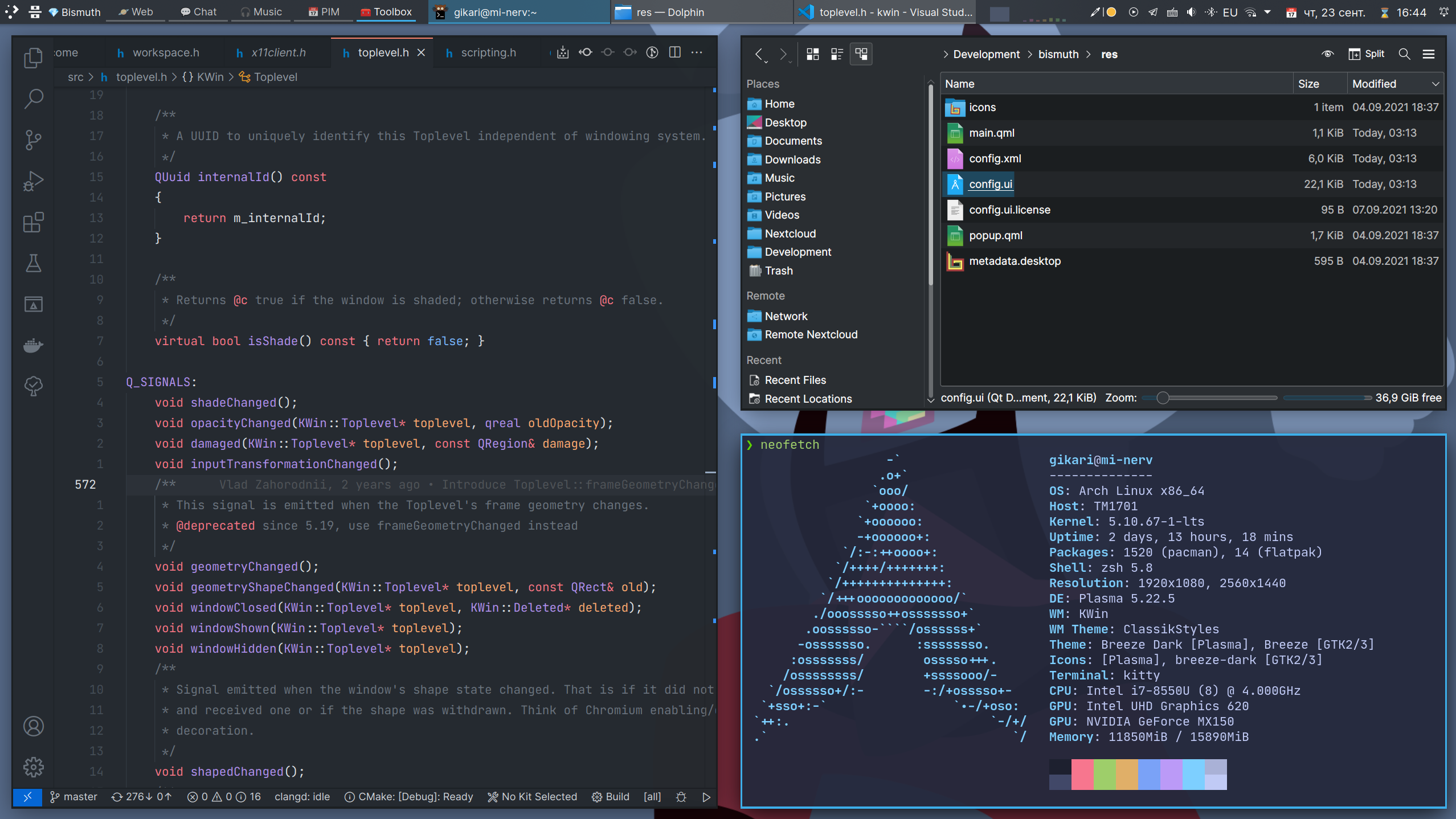
Capture 01 // Fullscreen
Bismuth screenshot 1
01 / 02

04. Documentation & Guide

Source: Bismuth-Forge/bismuthRef: ef69afe69f
README.md|GitHub Flavored Markdown

🌈 Bismuth 🌈

Making tiling window management easy. On KDE Plasma.

![wayland: supported](https://img.shields.io/badge/Wayland-Ready-blue?style=for-the-badge&logo=kde) ![GitHub release (latest SemVer)](https://img.shields.io/github/v/release/Bismuth-Forge/bismuth?color=red&logo=github&style=for-the-badge) ![Matrix](https://img.shields.io/matrix/bi:kde.org?label=Chat&server_fqdn=kde.modular.im&logo=matrix&style=for-the-badge) ![Open Collective backers and sponsors](https://img.shields.io/opencollective/all/bismuth?label=Donators&logo=opencollective&style=for-the-badge)

demo

Arrange your windows in different grids to minimize the mouse usage.

🌟 Features 🌟

Automatic window tiling

Save your time by automatically managing windows on your screen.

https://user-images.githubusercontent.com/14205339/148453685-f1bcfa46-4952-4b9d-a6f1-d2d75a0b4992.mp4


Plasma integration

Power-up your workflow using native Plasma features - Virtual Desktops and Activities.

https://user-images.githubusercontent.com/14205339/148562411-c9cca82a-c694-4794-b5e4-8fe716ec3d98.mp4


Multiple Layouts

Use different layouts in different contexts.

https://user-images.githubusercontent.com/14205339/148564378-1def9350-a871-4f75-ba66-7a59ea1d4680.mp4


🏁 Getting Started

Requirements

  • A Linux distribution with KDE Plasma version 5.20 or higher
  • Qt version 5.15 or higher
  • KDE Frameworks version 5.78 or higher

You can check if your system matches these requirements by going to System Settings > About this System.

Installation

:warning: Distributions' packages are not affiliated with Bismuth developers. If you encounter any issues with the incorrect installation, you should contact the package maintainer first.

Arch Linux
Debian
Ubuntu
Fedora
Solus
OpenSUSE Tumbleweed
Gentoo
From Source

If you know a packaging solution for a distribution, that is not in the list, please open a pull request.

Usage

🎉 To start using Bismuth enable it in System Settings > Window Management > Window Tiling. Additionally, you can decorate your windows in a tiling window manager style (border-only windows) using the window decoration, that comes with Bismuth. To do so, go to System Settings > Appearance > Window Decorations and select the Bismuth decoration.

⌨️ You can view the shortcuts in System Settings > Shortcuts > Window Tiling. If you used Krohnkite before, you can import some of its shortcuts using the bash script.

🔧 If you want, you may also make a couple of manual fixes and tweaks to improve your experience with window tiling. See Tweaks section.

Configuration

You can configure Bismuth in the System Settings > Window Management > Window Tiling.
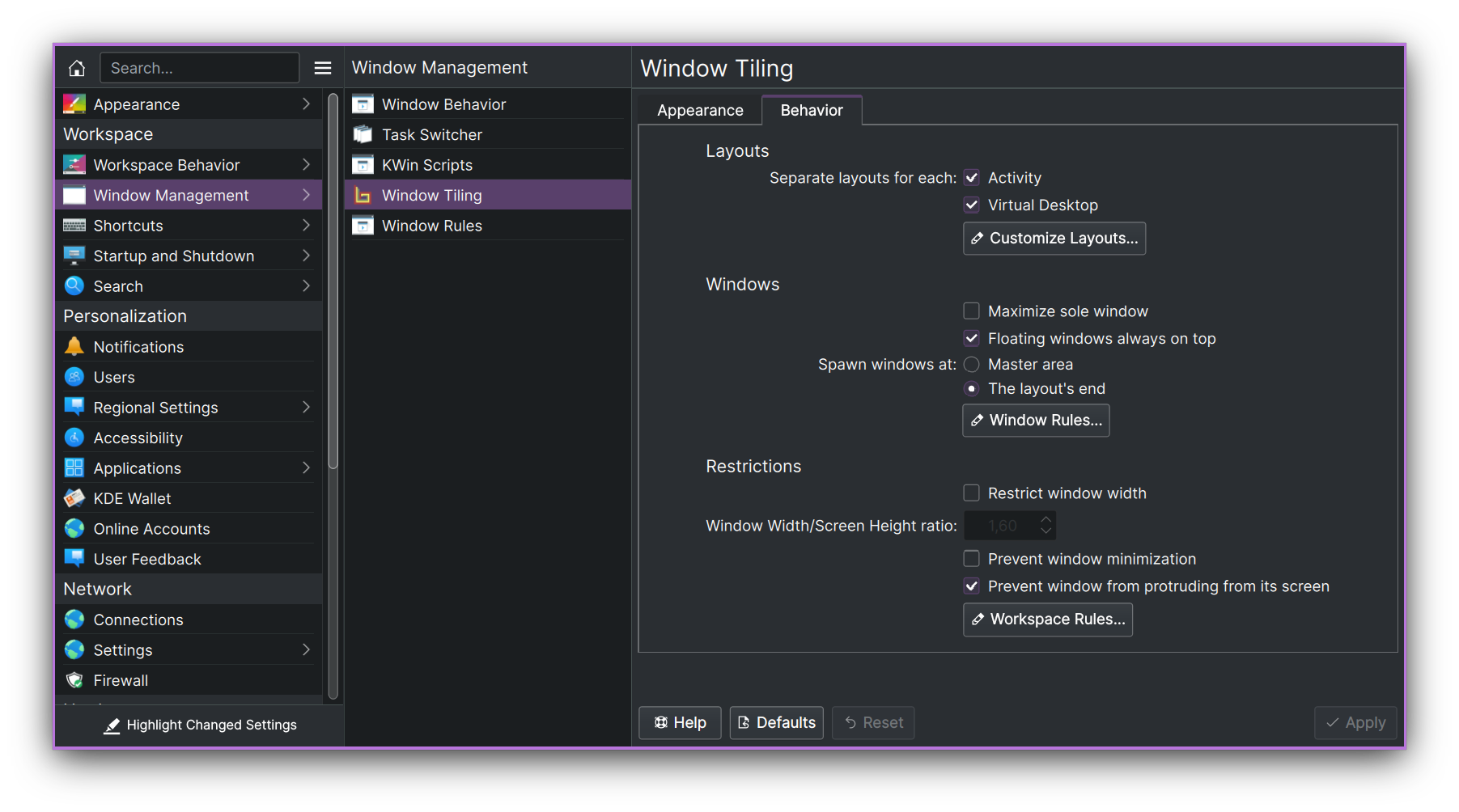
Bismuth Configuration Module

🤝 Acknowledgments

This project was made possible because of the hard work of other people on Krohnkite KWin Tiling Script.

GitHub Flavored Markdown (github-markdown-css)README snapshot at ef69afe69f