
01. Overview & Architecture

Profile: v1.0.0
Schema validatedSource pinned
Purpose
Catppuccin theme for the GRUB bootloader.
Compatibility
Any distro (Server: BOTH)
Window Manager & Theme
Any WM / DE / Catppuccin

02. Installation & Deployment

Before you installThis changes your desktop configuration. Run it as your normal user, never with sudo: it asks for sudo only where a step needs it (listed below).The guided installer shows its plan first. Files it would replace are kept unless you approve. Everything it copies, clones or appends to in your home folder is backed up and verified first, and --rollback restores it. Packages, sudo changes and the other commands listed under Impact are not undone.
IntegrityEach release from main builds the installers in GitHub Actions and signs them with a GitHub build attestation. Verify your download against the repository, not this website (Option B, step 2). If it does not verify, don't run it.
ImpactUses sudo: sudo cp -r src/catppuccin-mocha-grub-theme /usr/share/grub/themes/Uses sudo: sudo grub-mkconfig -o /boot/grub/grub.cfg
RecoveryGuided: backups in ~/.local/state/0xtsoa/backups/, undo with bash install.sh --rollback.Manual: the steps below only write in the download folder or run listed commands.
Option A: manual installAdvanced
Read the source at the reviewed commit, back up, then run each step yourself.
$git clone https://github.com/catppuccin/grub ~/0xtsoa-review/catppuccin-grub# 1. clone to a review folder
$git -C ~/0xtsoa-review/catppuccin-grub checkout --detach 0a37ab19f654e77129b409fed371891c01ffd0b9# 2. the reviewed commit
Then the steps. Package commands are written for Arch; on other distros use your package manager.

Step-by-step deployment protocol

Step-by-step deployment
1Clone the theme
$git clone --filter=blob:none https://github.com/catppuccin/grub && cd grub
$git -C grub checkout 0a37ab19f654e77129b409fed371891c01ffd0b9
2Copy a flavor and point GRUB at it
$sudo cp -r src/catppuccin-mocha-grub-theme /usr/share/grub/themes/
$# /etc/default/grub: GRUB_THEME="/usr/share/grub/themes/catppuccin-mocha-grub-theme/theme.txt"
3Regenerate the GRUB config
$sudo grub-mkconfig -o /boot/grub/grub.cfg
Option B: guided installerRecommended
The same steps as one script for any distro. It shows the plan first, keeps files you already have unless you approve replacing them, and backs up everything it changes in your home folder. Never pipe it into a shell.
$curl -fsSLo install.sh 'https://www.0xtsoa.dev/configs/catppuccin/grub/install.sh'# 1. download
$gh attestation verify install.sh --repo nyharena25/0xTsoa --signer-workflow nyharena25/0xTsoa/.github/workflows/attest-installers.yml# 2. verify (GitHub CLI 2.49+, signed in)
$less install.sh# 3. read it
$bash install.sh --dry-run# 4. preview: changes nothing
$bash install.sh# 5. install (asks first)
$bash install.sh --rollback# undo the file changes
View script in browserOther options: --force (replace conflicts, backed up first), --yes, --help

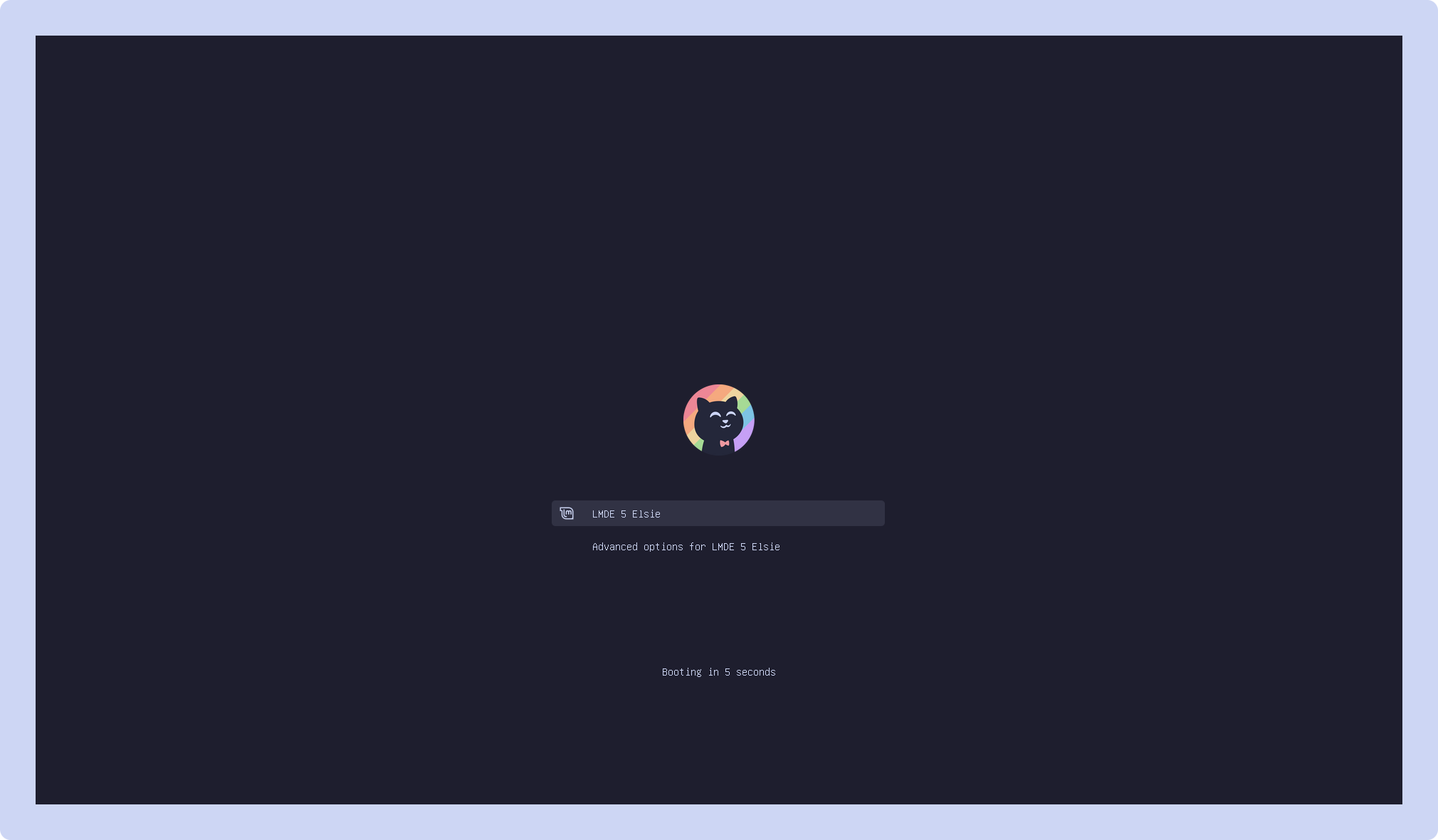
03. Screenshot Gallery // Catppuccin GRUB

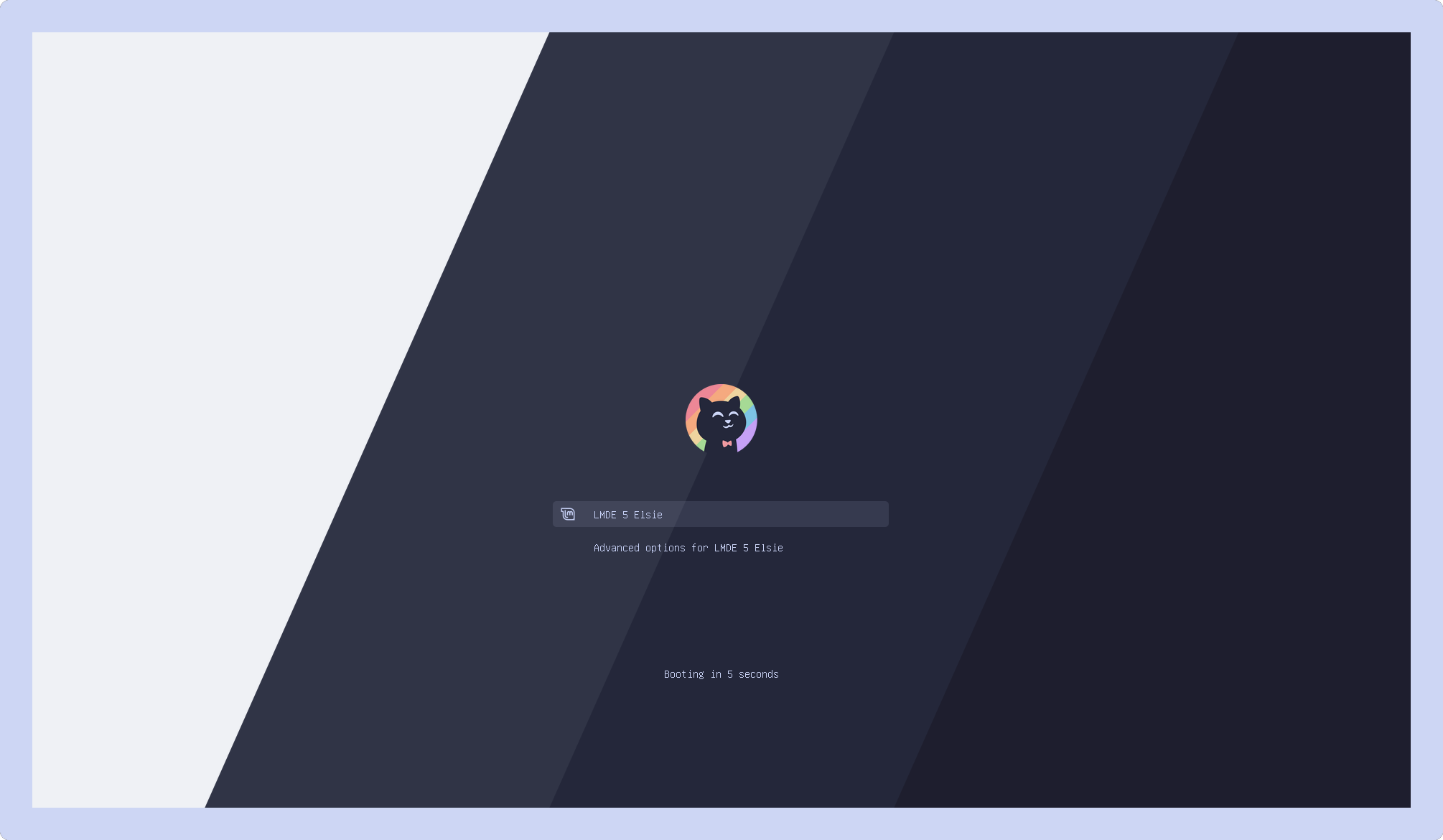
Capture 01 // Fullscreen
Catppuccin GRUB screenshot 1
01 / 08

04. Documentation & Guide

Source: catppuccin/grubRef: 0a37ab19f6
README.md|GitHub Flavored Markdown

Logo
Catppuccin for Grub

Stargazers

Previews

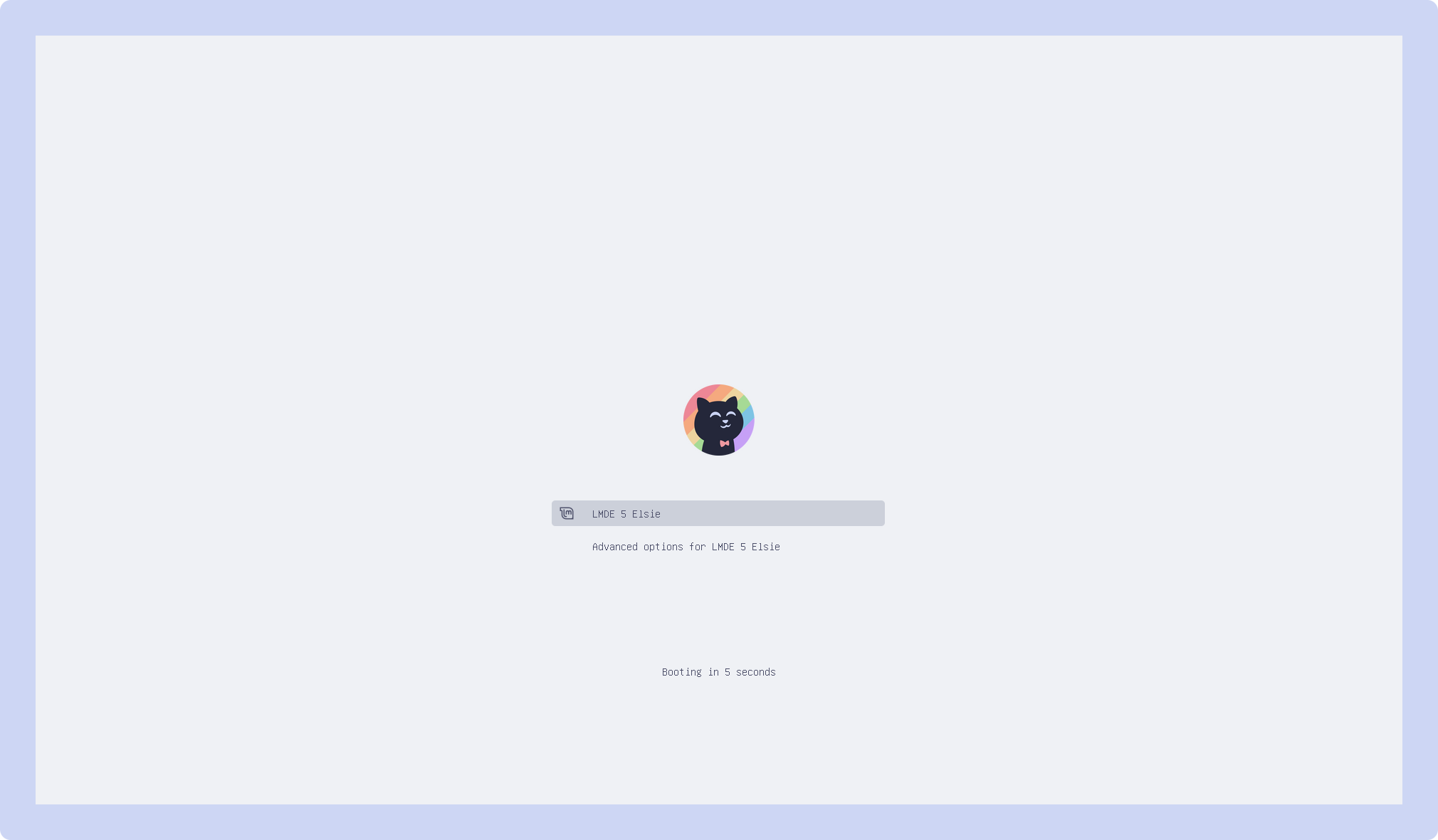
🌻 Latte
🪴 Frappé
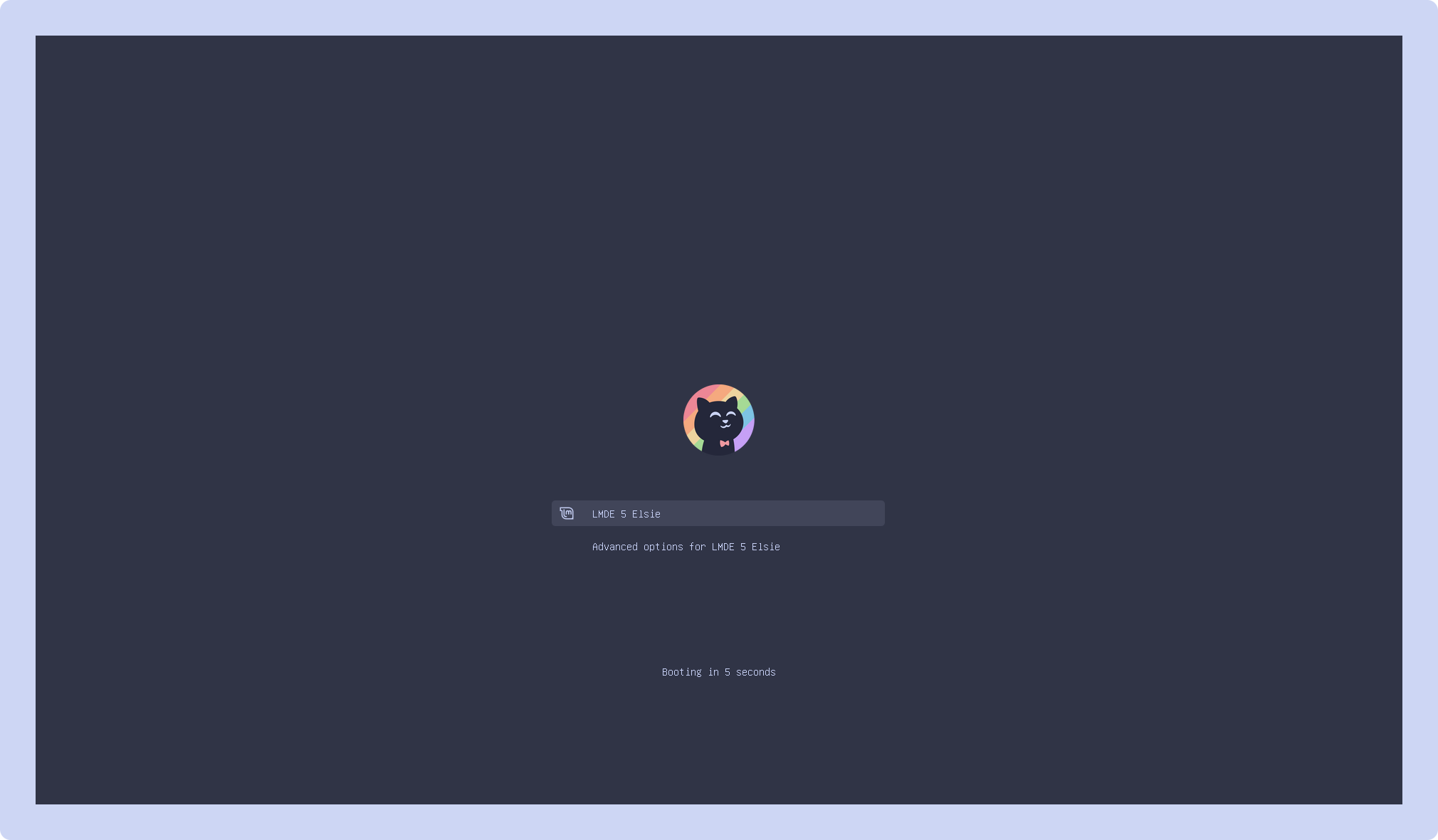
🌺 Macchiato
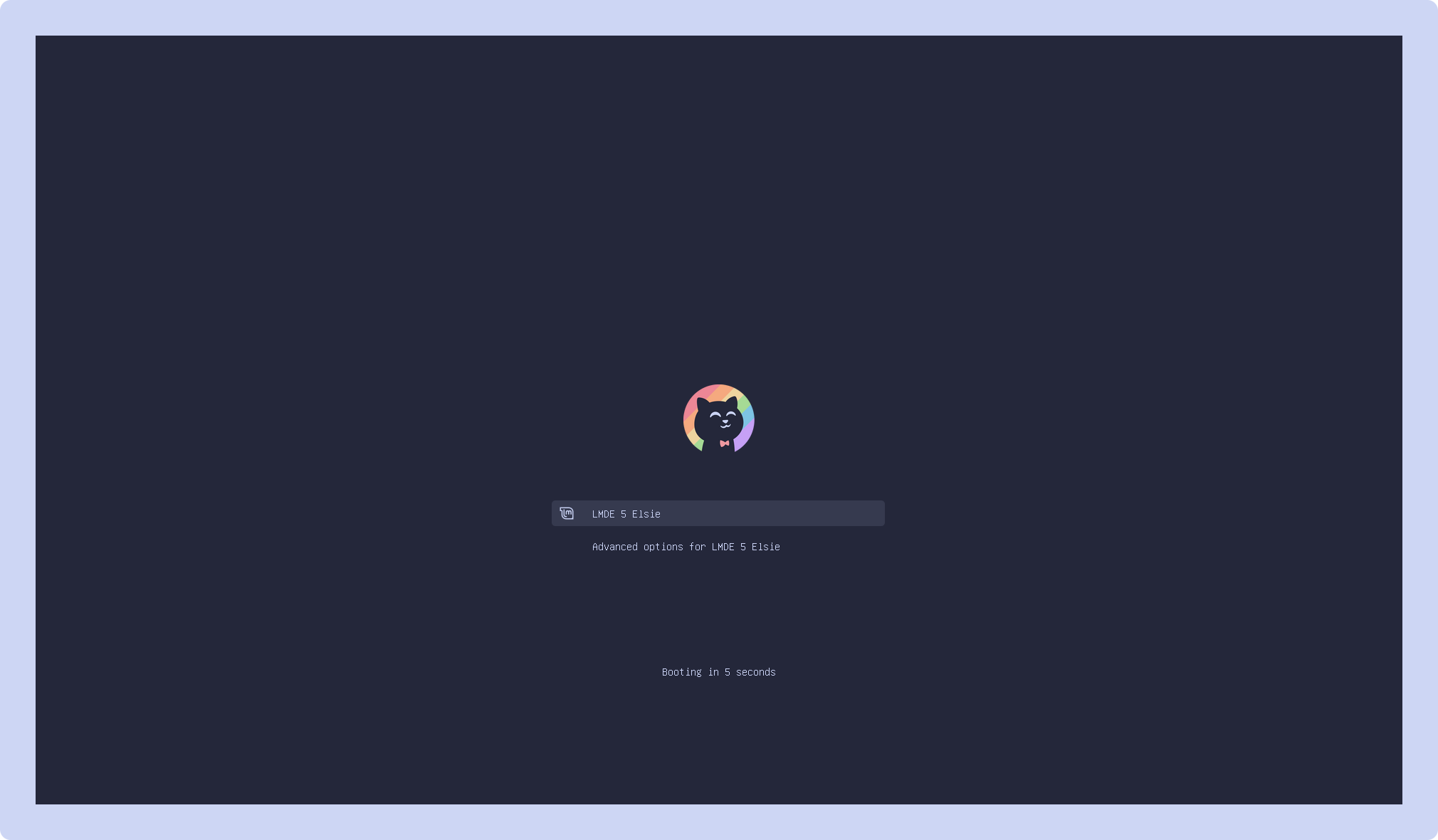
🌿 Mocha
Usage

  1. Clone this repository locally and enter the cloned folder:

    git clone https://github.com/catppuccin/grub.git && cd grub
    
  2. Copy all or selected theme from src folder to /usr/share/grub/themes/. E.g. to copy all themes use:

    sudo cp -r src/* /usr/share/grub/themes/
    
  3. Uncomment and edit following line in /etc/default/grub to your selected theme:

    GRUB_THEME="/usr/share/grub/themes/catppuccin-<flavor>-grub-theme/theme.txt"
    
  4. Update grub:

    sudo grub-mkconfig -o /boot/grub/grub.cfg
    

    For Fedora:

    sudo grub2-mkconfig -o /boot/grub2/grub.cfg
    

💿 Ventoy Support

See instructions in the ventoy directory.

🙋 FAQ

  • Q: "How can I make Grub work with my screen resolution?"

    A: Uncomment and edit following line in /etc/default/grub (modify 1920x1080 to your screen resolution):

    GRUB_GFXMODE=1920x1080
    

    Proceed to update grub (see step 4 of the installation)

  • Q: "How can I make Grub detect all my operating systems? (dual-boot)"

    A: Make sure you have os-prober installed. Add or uncomment following line in /etc/default/grub :

    GRUB_DISABLE_OS_PROBER=false
    

    Save that file and update grub (see step 4 of the installation)

  • Q: "How can I make Grub detect my theme?"

    A: Make sure to comment the following line in /etc/default/grub like so:

    # GRUB_TERMINAL_OUTPUT="console"
    

    Save that file and update grub (step 4). If this did not work, try to replace /usr/share/ with /boot/ and repeat installation steps 2-4.

💝 Thanks to

 

Copyright © 2021-present Catppuccin Org

GitHub Flavored Markdown (github-markdown-css)README snapshot at 0a37ab19f6