
01. Overview & Architecture

Profile: v1.1.2
Schema validatedSource pinned
Purpose
Catppuccin theme for the SDDM display manager.
Compatibility
Any distro (Server: BOTH)
Desktop Part
Login & greeters
Window Manager & Theme
Any WM / DE / Catppuccin

02. Installation & Deployment

Before you installThis changes your desktop configuration and installs packages. Run it as your normal user, never with sudo: it asks for sudo only where a step needs it (listed below).The guided installer shows its plan first. Files it would replace are kept unless you approve. Everything it copies, clones or appends to in your home folder is backed up and verified first, and --rollback restores it. Packages, sudo changes and the other commands listed under Impact are not undone.
IntegrityEach release from main builds the installers in GitHub Actions and signs them with a GitHub build attestation. Verify your download against the repository, not this website (Option B, step 2). If it does not verify, don't run it.
ImpactPackages: catppuccin-sddm-theme-mocha (some from the Arch AUR)
RecoveryGuided: backups in ~/.local/state/0xtsoa/backups/, undo with bash install.sh --rollback.Manual: the steps below only write in the download folder or run listed commands.
Option A: manual installAdvanced
Read the source at the reviewed commit, back up, then run each step yourself.
$git clone https://github.com/catppuccin/sddm ~/0xtsoa-review/catppuccin-sddm# 1. clone to a review folder
$git -C ~/0xtsoa-review/catppuccin-sddm checkout --detach 28699090372cce33c12a923cf8fc297a9cae2cd4# 2. the reviewed commit
Then the steps. Package commands are written for Arch; on other distros use your package manager.

Step-by-step deployment protocol

Step-by-step deployment
1Install catppuccin-sddm-theme-mocha (AUR)
$yay -S catppuccin-sddm-theme-mocha # AUR
$# Other distros: see the upstream README
2Enable on next boot
$# Set it as your display manager / greeter, then reboot
Option B: guided installerRecommended
The same steps as one script for any distro. It shows the plan first, keeps files you already have unless you approve replacing them, and backs up everything it changes in your home folder. Never pipe it into a shell.
$curl -fsSLo install.sh 'https://www.0xtsoa.dev/configs/catppuccin/sddm/install.sh'# 1. download
$gh attestation verify install.sh --repo nyharena25/0xTsoa --signer-workflow nyharena25/0xTsoa/.github/workflows/attest-installers.yml# 2. verify (GitHub CLI 2.49+, signed in)
$less install.sh# 3. read it
$bash install.sh --dry-run# 4. preview: changes nothing
$bash install.sh# 5. install (asks first)
$bash install.sh --rollback# undo the file changes
View script in browserOther options: --force (replace conflicts, backed up first), --yes, --help

03. Screenshot Gallery // Catppuccin SDDM

Capture 01 // Fullscreen
Catppuccin SDDM screenshot 1
01 / 08

04. Documentation & Guide

Source: catppuccin/sddmRef: 2869909037
README.md|GitHub Flavored Markdown

Logo
Catppuccin for SDDM

Previews

🌻 Latte
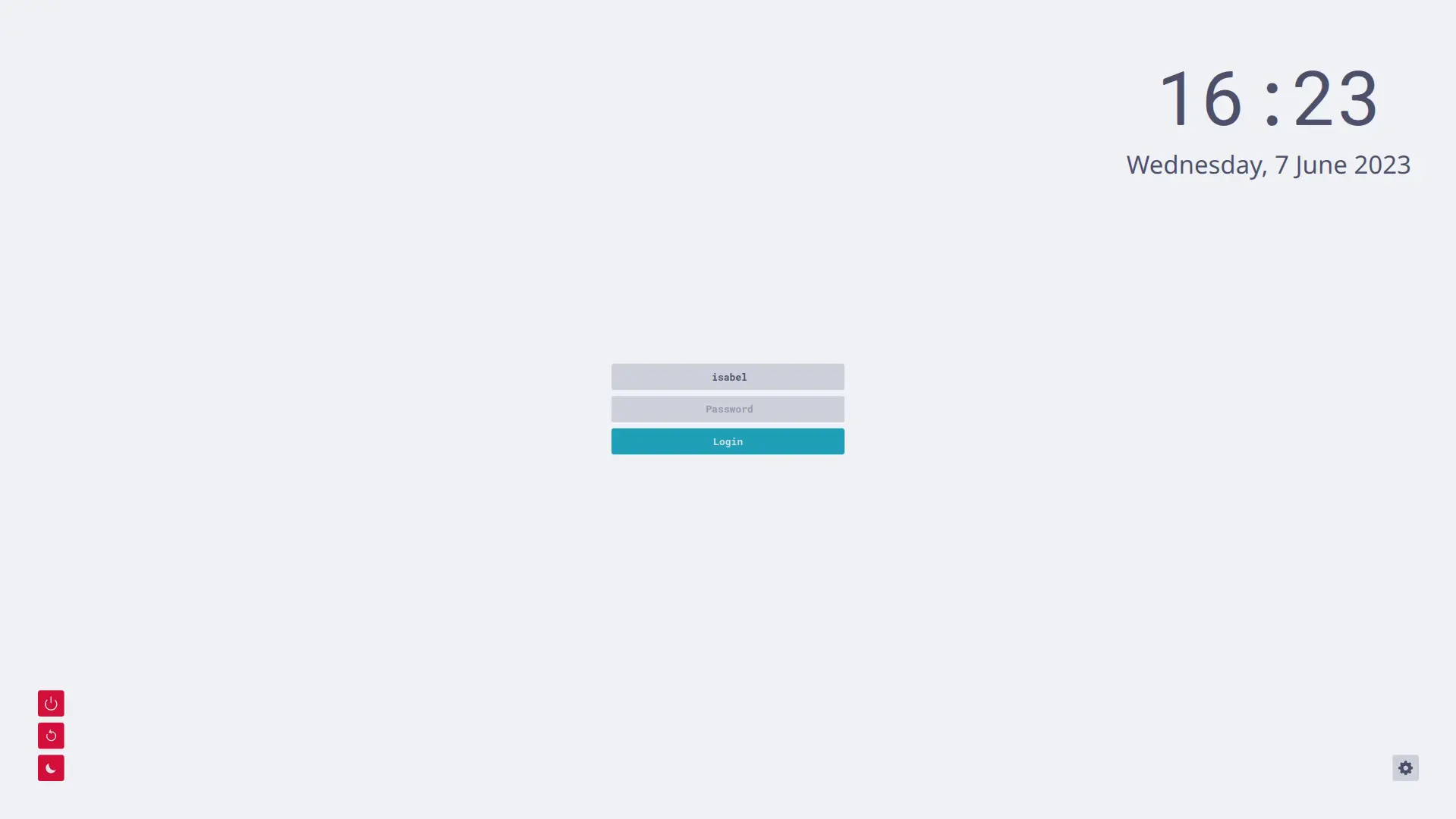
🪴 Frappé
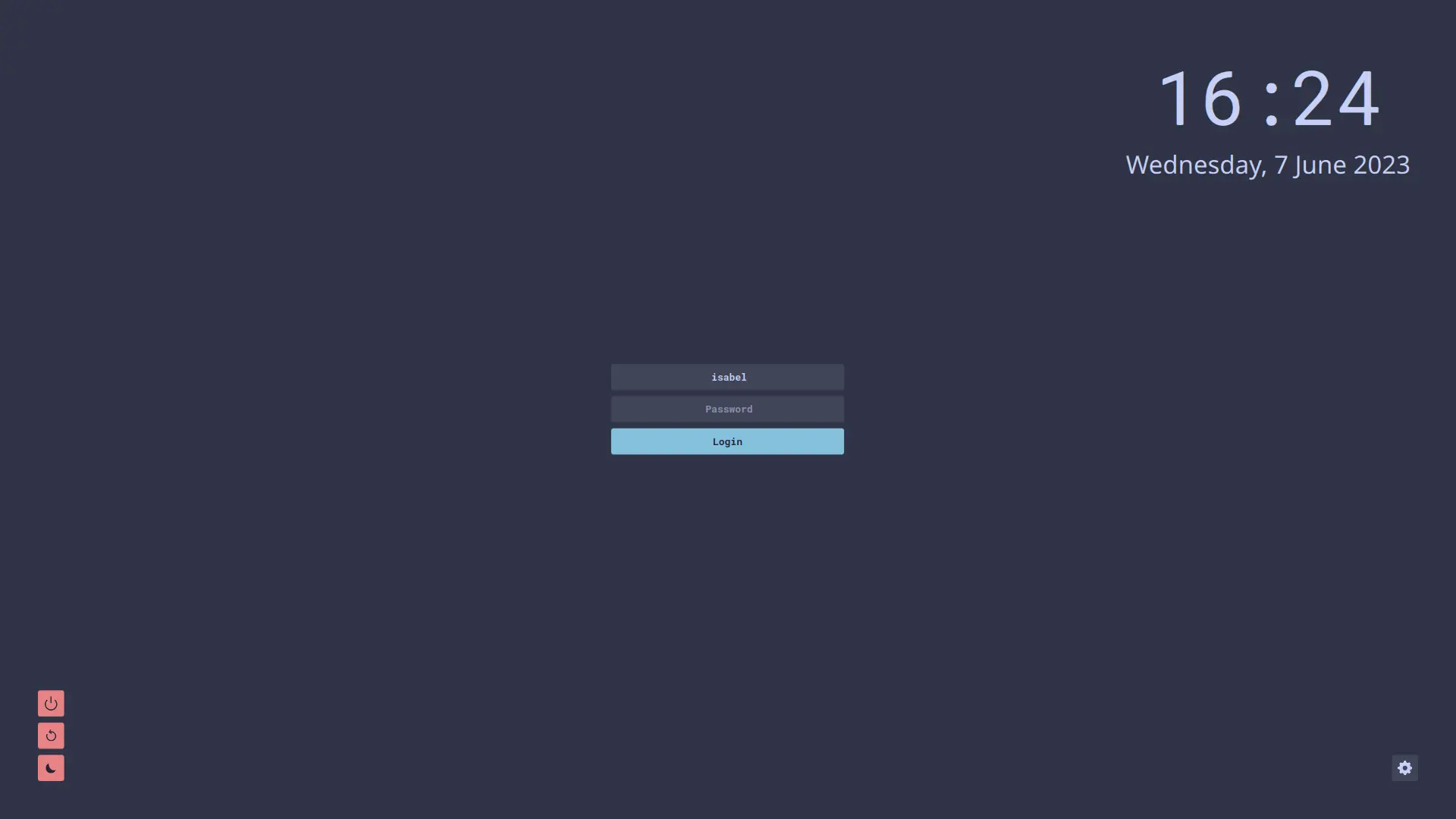
🌺 Macchiato
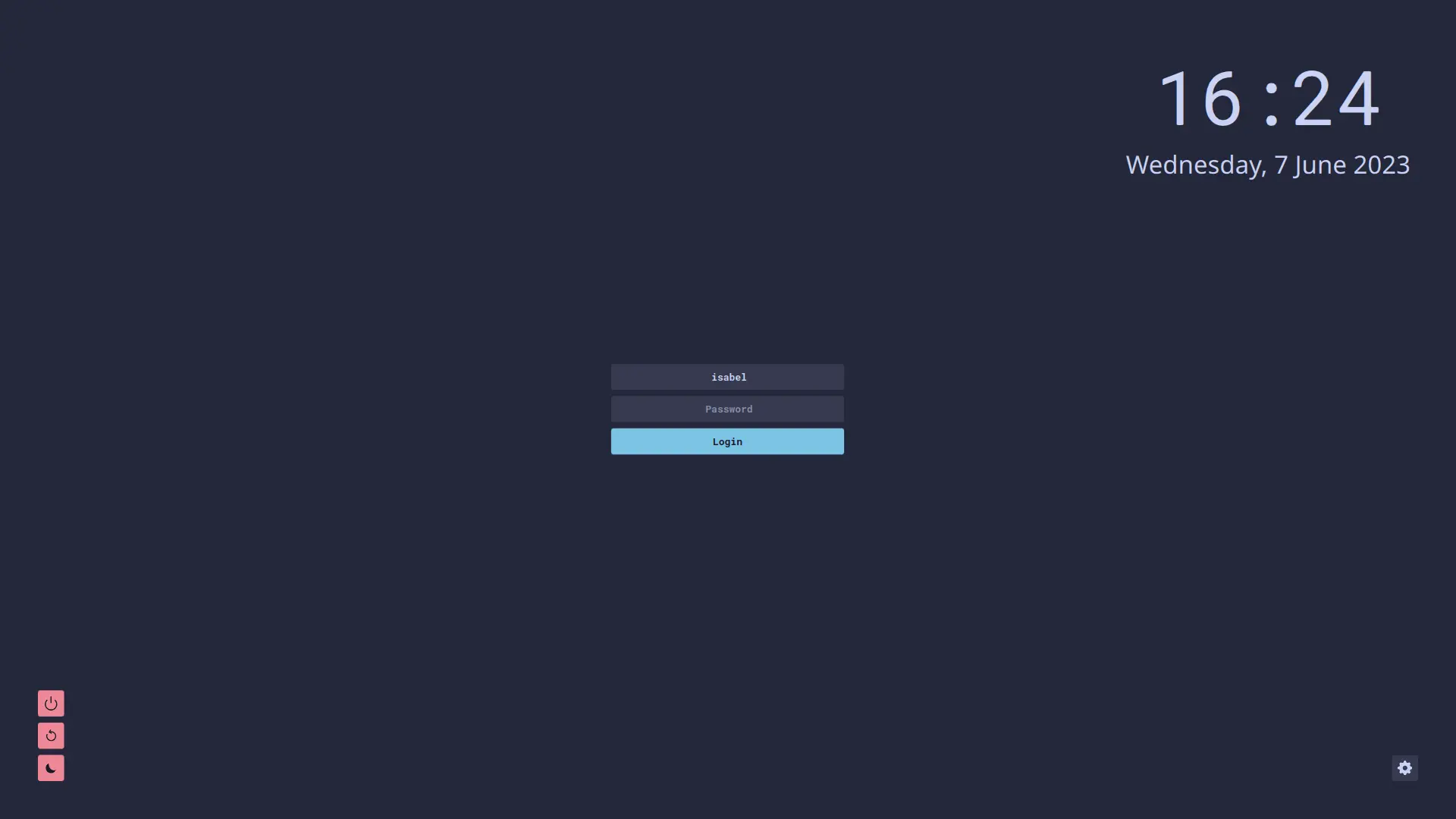
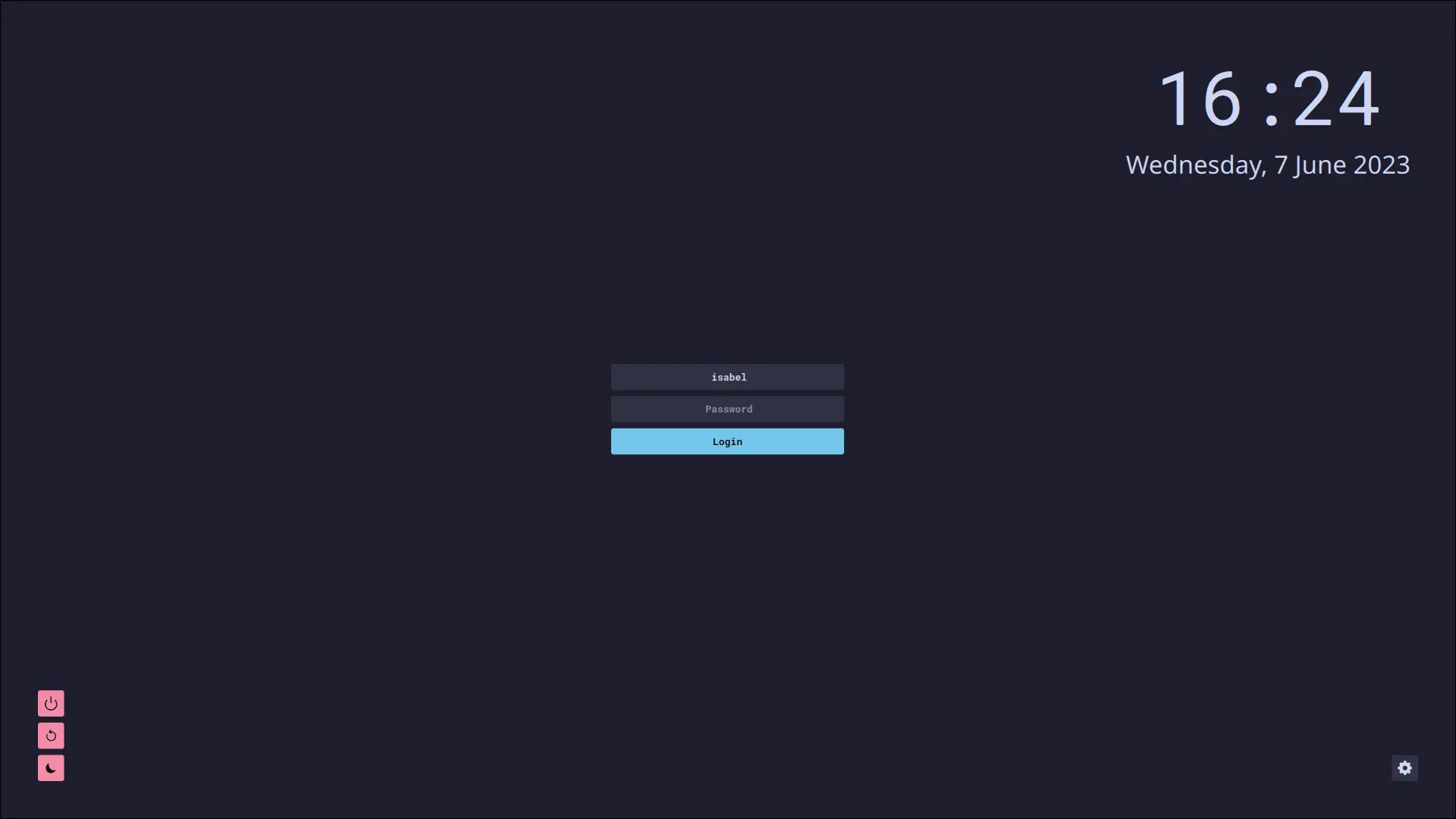
🌿 Mocha
Usage

  1. Ensure you have installed the dependencies for your operating system.

  2. Download your chosen flavour + accent zip file from the latest GitHub release.

  3. Unzip the file and move the resulting directory to /usr/share/sddm/themes/. E.g. to copy catppuccin-mocha-mauve:

    sudo mv -v catppuccin-mocha-mauve /usr/share/sddm/themes
    
  4. Edit the /etc/sddm.conf file and change the theme to catppuccin-<flavour>-<accent>. For example, catppuccin-mocha-mauve.

    If you don't have this file, create the /etc/sddm.conf file and add the following lines:

    [Theme]
    Current=catppuccin-mocha-mauve
    
  5. Unfortunately, the theme does not work properly if SDDM is run on X11 and not Wayland - follow the instructions here here if there are issues.

Dependencies

Arch Based OS

pacman -Syu qt6-svg qt6-declarative qt5-quickcontrols2

Debian Based OS

apt install --no-install-recommends qml-module-qtquick-layouts qml-module-qtquick-controls2 qml-module-qtquick-window2 libqt6svg6

RPM Based OS

dnf install qt6-qtquickcontrols2 qt6-qtsvg

Solus OS

eopkg install qt6-quickcontrols2 qt6-svg

NixOS

This theme is available in nixpkgs `catppuccin-sddm`.

Add the package to systemPackages, you can customize the theme by overriding the attributes:

environment.systemPackages = [(
  pkgs.catppuccin-sddm.override {
    flavor = "mocha";
    accent = "mauve";
    font  = "Noto Sans";
    fontSize = "9";
    background = "${./wallpaper.png}";
    loginBackground = true;
  }
)];

Then set it as the theme in the sddm configuration, change the suffix to the flavor and accent you set in the package override:

displayManager.sddm = {
  enable = true;
  theme = "catppuccin-mocha-mauve";
  package = pkgs.kdePackages.sddm;
};

Configuration

  • Font: The chosen font
  • FontSize: The text size
  • ClockEnabled: Whether the clock is on or off, this should be set to either true or false
  • CustomBackground: When this is true it will read from Background to render the custom background image, this should be set to either true or false
  • Background: This is the location of the background image, it is recomended to use the provided backgrounds/ directory to store the images
  • LoginBackground: This is a extra background around the login panel, this should be set to either true or false
  • UserIcon: When this is set to true the user icon will be displayed, this should be set to either true or false

💝 Thanks to


Copyright © 2021-present Catppuccin Org

GitHub Flavored Markdown (github-markdown-css)README snapshot at 2869909037