01. Overview & Architecture

Schema validatedSource pinned
Purpose
Script that changes your theme automatically based on the wallpaper.
Compatibility
Any distro (Server: X11)
Window Manager & Theme
Any WM / DE / Wallpaper-based

02. Installation & Deployment

Before you installThis changes your desktop configuration. Run it as your normal user, never with sudo: it asks for sudo only where a step needs it (listed below).The guided installer shows its plan first. Files it would replace are kept unless you approve. Everything it copies, clones or appends to in your home folder is backed up and verified first, and --rollback restores it. Packages, sudo changes and the other commands listed under Impact are not undone.
IntegrityEach release from main builds the installers in GitHub Actions and signs them with a GitHub build attestation. Verify your download against the repository, not this website (Option B, step 2). If it does not verify, don't run it.
ImpactRuns the upstream installer make, which manages its own files. The guided installer backs up your usual desktop config folders first.Runs the upstream installer sudo make install, which manages its own files. The guided installer backs up your usual desktop config folders first.
RecoveryGuided: backups in ~/.local/state/0xtsoa/backups/, undo with bash install.sh --rollback.Manual: back up first (Option A, step 3).
Option A: manual installAdvanced
Read the source at the reviewed commit, back up, then run each step yourself.
$git clone https://github.com/GideonWolfe/Chameleon ~/0xtsoa-review/gideonwolfe-chameleon# 1. clone to a review folder
$git -C ~/0xtsoa-review/gideonwolfe-chameleon checkout --detach 125687cc842758329d95940f1cd7557a006d1d79# 2. the reviewed commit
$for p in ~/.config/hypr ~/.config/quickshell ~/.config/waybar ~/.config/eww ~/.config/ags ~/.config/hyprpanel ~/.config/kitty ~/.config/foot ~/.config/alacritty ~/.config/wezterm ~/.config/ghostty ~/.config/rofi ~/.config/wofi ~/.config/fuzzel ~/.config/dunst ~/.config/mako ~/.config/swaync ~/.config/i3 ~/.config/sway ~/.config/niri ~/.config/bspwm ~/.config/sxhkd ~/.config/awesome ~/.config/polybar ~/.config/picom ~/.config/qtile ~/.config/wlogout ~/.config/swaylock ~/.config/fish ~/.config/nvim ~/.config/fastfetch ~/.config/starship.toml ~/.config/matugen ~/.config/wal ~/.config/gtk-3.0 ~/.config/gtk-4.0 ~/.config/Kvantum ~/.config/qt5ct ~/.config/qt6ct ~/.bashrc ~/.zshrc ~/.themes; do [ -e "$p" ] && cp -a "$p" "$p.bak-0xtsoa"; done# 3. back up what the steps write
Read the upstream installer in ~/0xtsoa-review/gideonwolfe-chameleon before running it, and every script it calls.Then the steps. Package commands are written for Arch; on other distros use your package manager.

Step-by-step deployment protocol

Step-by-step deployment
1Clone the repository
$git clone --filter=blob:none https://github.com/GideonWolfe/Chameleon
$git -C Chameleon checkout 125687cc842758329d95940f1cd7557a006d1d79
$cd Chameleon
2Build and install with make
$make
$sudo make install
Option B: guided installerRecommended
The same steps as one script for any distro. It shows the plan first, keeps files you already have unless you approve replacing them, and backs up everything it changes in your home folder. Never pipe it into a shell.
$curl -fsSLo install.sh 'https://www.0xtsoa.dev/configs/gideonwolfe/chameleon/install.sh'# 1. download
$gh attestation verify install.sh --repo nyharena25/0xTsoa --signer-workflow nyharena25/0xTsoa/.github/workflows/attest-installers.yml# 2. verify (GitHub CLI 2.49+, signed in)
$less install.sh# 3. read it
$bash install.sh --dry-run# 4. preview: changes nothing
$bash install.sh# 5. install (asks first)
$bash install.sh --rollback# undo the file changes
View script in browserOther options: --force (replace conflicts, backed up first), --yes, --help

03. Screenshot Gallery // Chameleon

Capture 01 // Fullscreen
alt-text
01 / 02

04. Documentation & Guide

Source: GideonWolfe/ChameleonRef: 125687cc84
README.md|GitHub Flavored Markdown

Chameleon

alt-text

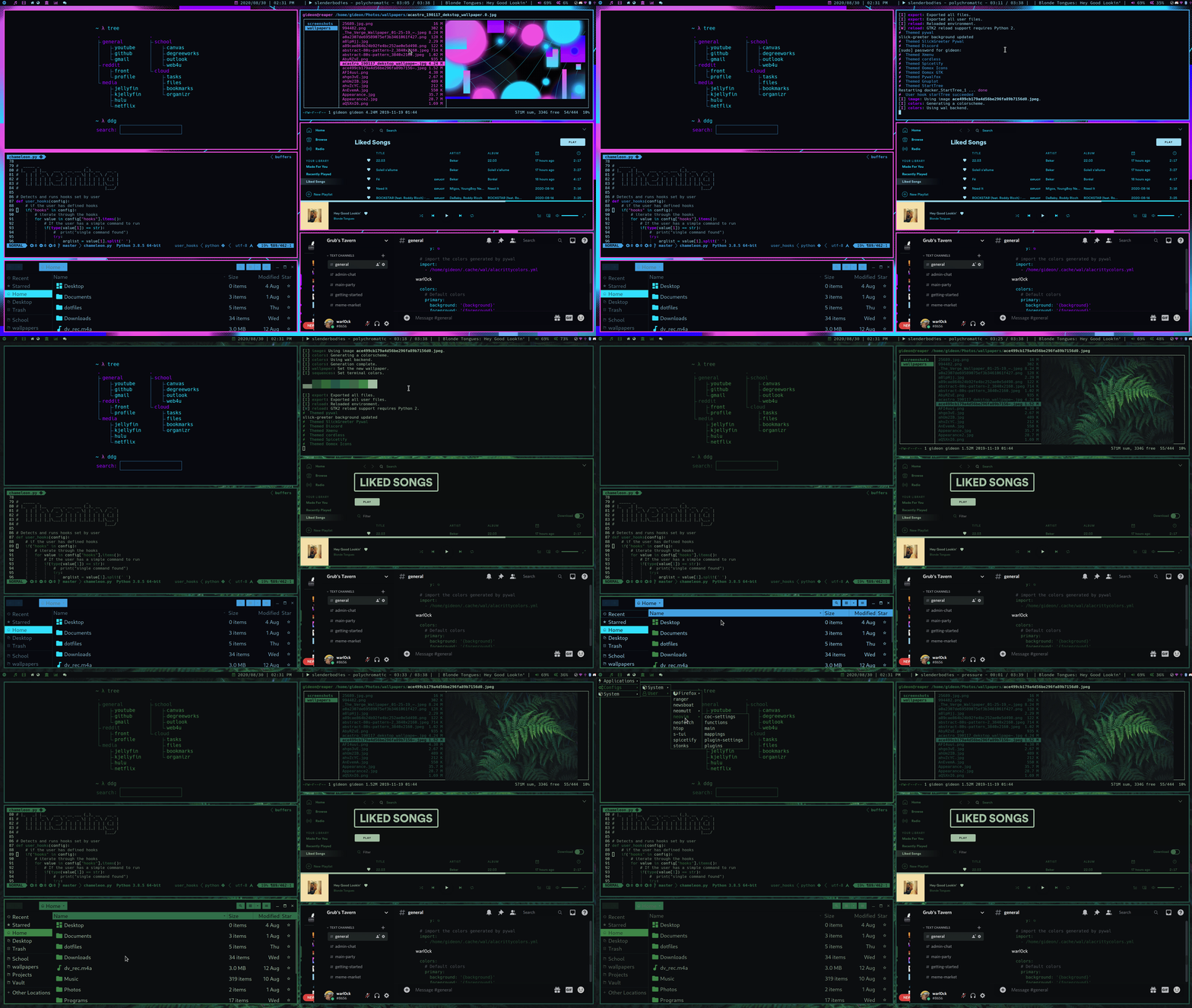
This script acts as an extension to wal, by taking the generated colors and theming anything that can be themed, all in one script.

If the script detects you have certain programs on your system, it will try to generate themes for them.

The current programs are ones that I use, but feel free to add more and send a PR!

Examples

alt-text

Programs that use GTK themes like Thunar and Baobab should just pick up the theme, assuming you have selected the oomox-xresources-reverse theme in lxappearance. Spotify, Discord, Firefox, and gnuplot are shown here rocking their custom generated themes.

Programs that use Qt themes can also be configured to take themes from GTK, meaning we can theme them as well! The programs must be launched with the --style gtk2 flag, and you must install and configure qt5-styleplugins.

Installation

git clone https://github.com/GideonWolfe/Chameleon/
cd Chameleon
make install

Usage

  • chameleon -i [path to picture] [options for wal]
  • chameleon -t [wal theme] [options for wal]

Configuration

Configuration of chameleon is done through the file $HOME/.config/chameleon/config.yaml

Here, one can specify options specific to a single program, or even specify custom commands to be run every time you apply a theme.

Most programs will have a path attribute which may or may not be necessary depending on your setup. For example, if you were using a cloned, local version of wal-discord, one might want to specify a specific path where chameleon can find this specific executable.

If the path attribute is not given for a program, it is assumed that the program is located in your $PATH and will be run as a standalone command.

Programs supported

Planned support

Notes

To get the most complete theme possible, check out my dotfiles. Here you can find the configurations to get these colors on many other programs, such as rofi, polybar, firefox, and more. Since they update automatically, there was no need to include them in this script.

To apply icon themes, you need one of the icon sets supported by oomox. Change the icons section of the config file to look for the folder your desired icons are in, and change the command to the appropriate variant.

To use the new icon themes added to oomox, you have to create a executable file in $HOME/.local/bin with a similar naming schema like the example command used for gnome colors icon theme in config.yaml. The content of the executable should be something like:

#!/bin/bash
cd /opt/oomox
exec ./plugins/{path to change_color.sh file for your respective icon theme under plugins} "$@"

With the above executable created, all you have to do is to give it execute permission by using chmod +x and use the name of the executable as the command for your icon theme in the config.yaml file. Note: Make sure $HOME/.local/bin is added to your PATH.

Upgrade from v1 to v2

Simply delete the old chameleon executable at /usr/local/bin/chameleon. Now use chameleon.py which should be symlinked to $HOME/.local/bin/chameleon.py.

$HOME/.local/bin/ must be on your $PATH

GitHub Flavored Markdown (github-markdown-css)README snapshot at 125687cc84