swaylock-effects
Swaylock-effects is a fork of swaylock which adds built-in screenshots and image manipulation effects like blurring. It's inspired by i3lock-color, although the feature sets aren't perfectly overlapping.
This repository (jirutka/swaylock-effects) is a fork of mortie/swaylock-effects which is no longer maintained.
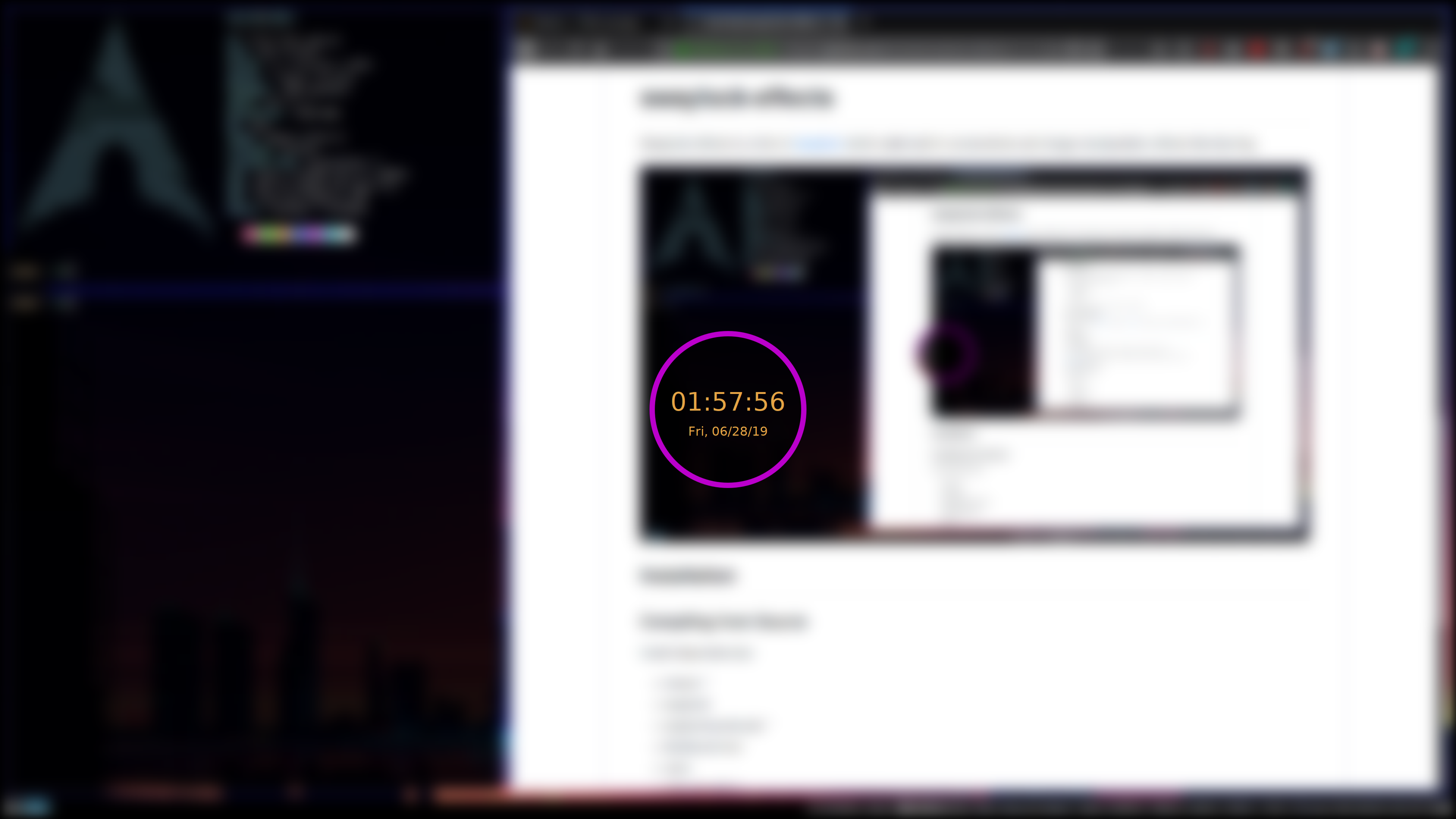
Example Command
swaylock \
	--screenshots \
	--clock \
	--indicator \
	--indicator-radius 100 \
	--indicator-thickness 7 \
	--effect-blur 7x5 \
	--effect-vignette 0.5:0.5 \
	--ring-color bb00cc \
	--key-hl-color 880033 \
	--line-color 00000000 \
	--inside-color 00000088 \
	--separator-color 00000000 \
	--grace 2 \
	--fade-in 0.2
New Features
The main new features compared to upstream swaylock are:
--screenshotsto use screenshots instead of an image on disk or a color--clockto show date/time in the indicator- Use
--indicatorto make the indicator always active - Use
--timestrand--datestrto set the date/time formats (using strftime-style formatting)
- Use
--submit-on-touchto use your touchscreen to submit a password. If you can unlock your device with anything else than your password, this might come helpful to trigger PAM's authentication process.--grace <seconds>to set a password grace period, so that the password isn't required to unlock until some number of seconds have passed.- Used together with
--indicator, the indicator is always shown, even in the grace period. - Used together with
--indicator-idle-visible, the indicator is only visible after the grace period. - By default, a key press, a mouse event or a touch event will unlock
during the grace period. Use
--grace-no-mouseto not unlock as a response to a mouse event, and--grace-no-touchto not unlock as a response to a touch event.
- Used together with
--fade-in <seconds>to make the lock screen fade in.--indicator-image <path>to display an image inside the indicator.--text-clear <string>,--text-caps-lock <string>,--text-ver <string>, and--text-wrong <string>to change the texts displayed inside the indicator.- Various effects which can be applied to the background image
--effect-blur <radius>x<times>: Blur the image (thanks to yvbbrjdr's fast box blur algorithm in i3lock-fancy-rapid)--effect-pixelate <factor>: Pixelate the image.--effect-scale <scale>: Scale the image by a factor. This can be used to make other effects faster if you don't need the full resolution.--effect-greyscale: Make the image greyscale.--effect-vignette <base>:<factor>: Apply a vignette effect (range is 0-1).--effect-compose <position>;<size>;<gravity>;<path>: Overlay another image.--effect-custom <path>: Load a custom effect from a C file or shared object.
New feature ideas are welcome as issues (though I may never get around to implement them), new feature implementations are welcome as pull requests :)
Versions
swaylock-effects continuously incorporates changes from the original swaylock. The following table shows the relation between the swaylock-effect and swaylock versions.
| swaylock-effects | swaylock (original) |
|---|---|
| 1.6-0 | 1.5 |
| 1.6-1 | 1.5-7-ga99afe6a |
| 1.6-2 | 1.5-9-g235b925d |
| 1.6-3 | 1.5-9-g235b925d |
| 1.6.10 | 1.6 |
| 1.6.11 | 1.6 |
| 1.7.0.0 | 1.7-8-gb4e3a2b |
Installation
From Packages
- Alpine Linux: swaylock-effects
- Arch Linux (AUR): swaylock-effects / swaylock-effects-git
- Fedora (Copr): swaylock-effects
- FreeBSD: swaylock-effects
- Guix: swaylock-effects
- Nix: swaylock-effects
The original mortie/swaylock-effects (now unmaintained) has been packaged for:
- Fedora (Copr): swaylock-effects (thanks to Edd Salkield)
- Gentoo (GURU overlay): swaylock-effects
- T2 SDE: swaylock-effects
Compiling from Source
Install dependencies:
- meson *
- wayland
- wayland-protocols *
- libxkbcommon
- cairo
- gdk-pixbuf2 **
- pam (optional)
- scdoc (optional: man pages) *
- git *
- openmp (if using a compiler other than GCC)
*Compile-time dep
**Optional: required for background images other than PNG
Run these commands:
meson build
ninja -C build
sudo ninja -C build install
On systems without PAM, you need to suid the swaylock binary:
sudo chmod a+s /usr/local/bin/swaylock
Swaylock will drop root permissions shortly after startup.
Effects
Blur
--effect-blur <radius>x<times>: Blur the image.
<radius> is a number specifying how big
the blur is, <times> is a number which specifies essentially how high quality the blur is
(i.e how closely the effect will resemble a true gaussian blur).
Pixelate
--effect-pixelate <factor>: Pixelate the image.
<factor> is the amount of pixelation; a value of 10 will make each 10x10 square of pixels
the same color.
Scale
--effect-scale <scale>: Scale the image by a factor.
This effect scales the internal buffer. This has a few uses:
- Use
--effect-scalein combination with--scalingto create a zoom effect:--efect-scale 1.1 --scaling center - Speed up other effects by making the resolution smaller: with
--effect-scale 0.5 --effect-blur 7x5 --effect-scale 2, swaylock-effect needs to blur only 1/4 as many pixels.
Greyscale
--effect-greyscale: Make the displayed image greyscale.
Vignette
--effect-vignette <base>:<factor>: Apply a vignette effect.
Base and factor should be between 0 and 1.
Compose
--effect-compose "<position>;<size>;<gravity>;<path>": Overlay another image to your lock screen.
<position>: Optional. The position on the screen to put the image, as<x>,<y>.- Can be a percentage (
10%,10%), a number of pixels (20,20), or a mix (30%,40). - A negative number indicates that number of pixels away from the right/bottom instead of
from the top/left;
-1,-1would be the bottom right pixel. - Default:
50%,50%.
- Can be a percentage (
<size>: Optional. The size of the image on the screen, as<w>x<h>.- Can be a percentage (
10%x10%), a number of pixels (20x20), or a mix (30%x40). - If the width is
-1, the width is figured out based on the height and aspect ratio. - If the height is
-1, the height is figured out based on the width and aspect ratio. - Default: The size of the image file.
- Can be a percentage (
<gravity>: Optional. Determine which point of the image is placed at<position>.- Possible values:
center,north,south,west,east,northwest,northeast, southwest,southeast`. - With a
<gravity>ofnorthwest,<position>gives the location of the top/left corner of the image; withsoutheast,<position>controls the bottom/right corner,centercontrols the middle of the image, etc. - Default:
centerif no<position>is given; otherwise, intelligently decide a gravity based on position (10,10-> northwest,-10,10-> northeast, etc).
- Possible values:
<path>: The path to an image file.
This command requires swaylock-effects to be compiled with gdk-pixbuf2. It supports all image formats gdk-pixbuf2 supports; on my system, that's png, jpeg, gif, svg, bmp, ico, tiff, wmf, ani, icns, pnm, qtif, tga, xbm and xpm.
Custom
--effect-custom <path>: Load a custom effect from a shared object.
The .so must export a function void swaylock_effect(uint32_t *data, int width, int height)
or a function uint32_t swaylock_pixel(uint32_t pix, int x, int y, int width, int height).