





01. Overview & Architecture

Profile: v33
Schema validatedSource pinned
Purpose
Marking-menu (pie menu) for GNOME Shell to launch apps and shortcuts.
Compatibility
Any distro (Server: BOTH)
Desktop Part
DE extensions
Window Manager & Theme
GNOME / Other

02. Installation & Deployment

Before you installThis changes your desktop configuration and installs packages. Run it as your normal user, never with sudo: it asks for sudo only where a step needs it (listed below).The guided installer shows its plan first. Files it would replace are kept unless you approve. Everything it copies, clones or appends to in your home folder is backed up and verified first, and --rollback restores it. Packages, sudo changes and the other commands listed under Impact are not undone.
IntegrityEach release from main builds the installers in GitHub Actions and signs them with a GitHub build attestation. Verify your download against the repository, not this website (Option B, step 2). If it does not verify, don't run it.
ImpactPackages: gnome-shell-extension-fly-pie (some from the Arch AUR)
RecoveryGuided: backups in ~/.local/state/0xtsoa/backups/, undo with bash install.sh --rollback.Manual: the steps below only write in the download folder or run listed commands.
Option A: manual installAdvanced
Read the source at the reviewed commit, back up, then run each step yourself.
$git clone https://github.com/Schneegans/Fly-Pie ~/0xtsoa-review/schneegans-fly-pie# 1. clone to a review folder
$git -C ~/0xtsoa-review/schneegans-fly-pie checkout --detach 28ea7f4c810fa692eaa2f4629f87b227a0c37a19# 2. the reviewed commit
Then the steps. Package commands are written for Arch; on other distros use your package manager.

Step-by-step deployment protocol

Step-by-step deployment
1Install gnome-shell-extension-fly-pie (AUR)
$yay -S gnome-shell-extension-fly-pie # AUR
$# Other distros: see the upstream README
2Enable it
$# Log out and back in, then enable it in Extension Manager or: gnome-extensions enable <uuid>
Option B: guided installerRecommended
The same steps as one script for any distro. It shows the plan first, keeps files you already have unless you approve replacing them, and backs up everything it changes in your home folder. Never pipe it into a shell.
$curl -fsSLo install.sh 'https://www.0xtsoa.dev/configs/schneegans/fly-pie/install.sh'# 1. download
$gh attestation verify install.sh --repo nyharena25/0xTsoa --signer-workflow nyharena25/0xTsoa/.github/workflows/attest-installers.yml# 2. verify (GitHub CLI 2.49+, signed in)
$less install.sh# 3. read it
$bash install.sh --dry-run# 4. preview: changes nothing
$bash install.sh# 5. install (asks first)
$bash install.sh --rollback# undo the file changes
View script in browserOther options: --force (replace conflicts, backed up first), --yes, --help

03. Screenshot Gallery // Fly-Pie

Capture 01 // Fullscreen
Desktop showcase capture
01 / 04

04. Documentation & Guide

Source: Schneegans/Fly-PieRef: 28ea7f4c81
README.md|GitHub Flavored Markdown


Important

Fly-Pie is currently in low-maintenance mode as I am working on my follow-up project 🌸 Kando.

Fly-Pie is an extension for GNOME Shell which lets you open marking menus via keyboard shortcuts. You can use it to launch applications, simulate hotkeys, open URLs and much more.

After the installation, you can open the example menu by pressing Ctrl+Space. Once you opened a marking menu, you can seamlessly transition between three alternative selection modes:
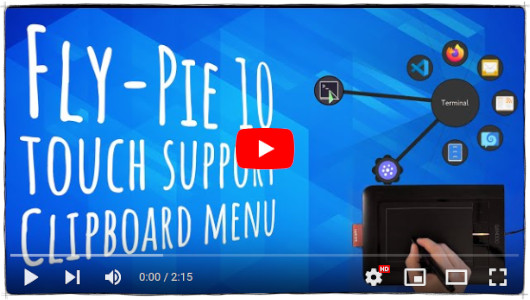
  • Point-and-Click: Select items by clicking on them or anywhere in the corresponding wedges.
  • Marking-Mode: Select items by drawing gestures. To do this, click anywhere and drag your mouse. Pausing or making a turn selects the currently dragged item.
  • Turbo-Mode: You can also "draw" gestures while holding Ctrl, Shift, or Alt without having to press your mouse button! This is especially useful when you opened the menu with a shortcut involving such a modifier.

Do you want to learn more? Have a look at the usage guide!

:heart: Will you love Fly-Pie?
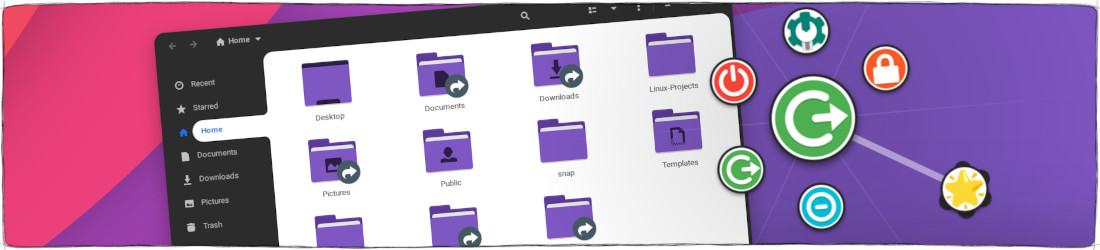
Fly-Pie is designed for you if you have one hand at the mouse most of the time. It is not designed to be used with a keyboard only; there are other applications which work better in this case (for example kupfer). Fly-Pie also works nicely with touch input.

If you want to learn more, use the links below for much more information!

Getting Started

Contributing to Fly-Pie

Additional Information

💞 Show that you do love Fly-Pie!

![kofi](https://img.shields.io/badge/Donate-on_Ko--fi-ff5e5b?logo=ko-fi) ![github](https://img.shields.io/badge/Donate-on_GitHub-purple?logo=github) ![paypal](https://img.shields.io/badge/Donate-on_PayPal-009cde?logo=paypal) ![crypto](https://img.shields.io/badge/Donate-some_Crypto-f7931a?logo=bitcoin)

While coding new features or translating Fly-Pie is the most awesome way to contribute, providing financial support will encourage me to invest my spare time for developing free and open-source software.

These awesome people have already donated to the development of my open-source projects:

Sponsors List

Do you want to show that you love it too? If you donate via Ko-fi, GitHub, or PayPal, you will show up in this list as well!

GitHub Flavored Markdown (github-markdown-css)README snapshot at 28ea7f4c81


