01. Overview & Architecture

Profile: 2023.04.11
Schema validatedSource pinned
Purpose
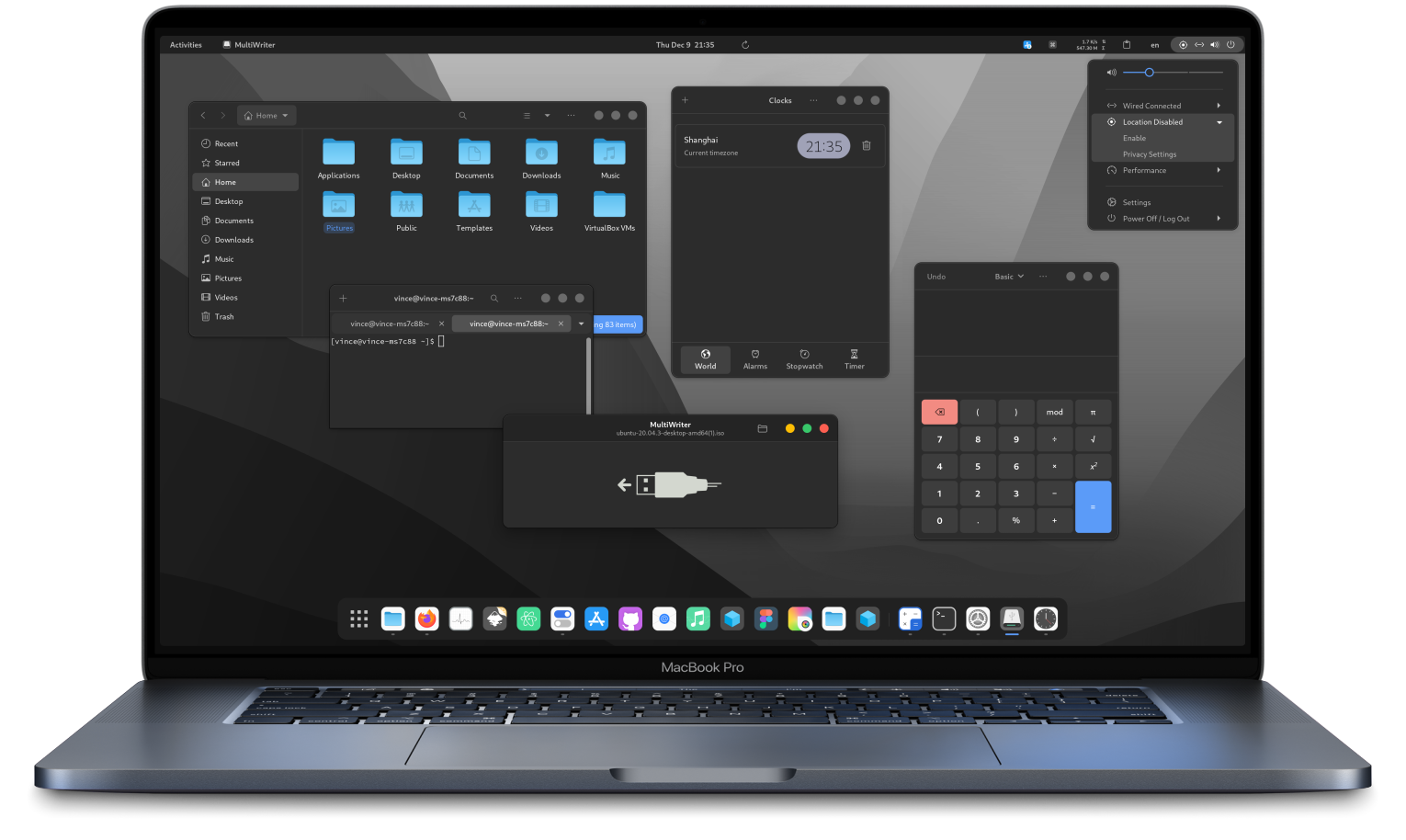
Clean GTK theme with libadwaita support and multiple color schemes.
Compatibility
Any distro (Server: BOTH)
Desktop Part
GTK & shell themes
Window Manager & Theme
Any WM / DE / Other

02. Installation & Deployment

Before you installThis changes your desktop configuration and installs packages. Run it as your normal user, never with sudo: it asks for sudo only where a step needs it (listed below).The guided installer shows its plan first. Files it would replace are kept unless you approve. Everything it copies, clones or appends to in your home folder is backed up and verified first, and --rollback restores it. Packages, sudo changes and the other commands listed under Impact are not undone.
IntegrityEach release from main builds the installers in GitHub Actions and signs them with a GitHub build attestation. Verify your download against the repository, not this website (Option B, step 2). If it does not verify, don't run it.
ImpactPackages: colloid-gtk-theme-git (some from the Arch AUR)
RecoveryGuided: backups in ~/.local/state/0xtsoa/backups/, undo with bash install.sh --rollback.Manual: the steps below only write in the download folder or run listed commands.
Option A: manual installAdvanced
Read the source at the reviewed commit, back up, then run each step yourself.
$git clone https://github.com/vinceliuice/Colloid-gtk-theme ~/0xtsoa-review/vinceliuice-colloid-gtk-theme# 1. clone to a review folder
$git -C ~/0xtsoa-review/vinceliuice-colloid-gtk-theme checkout --detach fe11342f37f124f1b29d44cf33e9a06053f4bba2# 2. the reviewed commit
Then the steps. Package commands are written for Arch; on other distros use your package manager.

Step-by-step deployment protocol

Step-by-step deployment
1Install colloid-gtk-theme-git (AUR)
$yay -S colloid-gtk-theme-git # AUR
$# Other distros: see the upstream README
Option B: guided installerRecommended
The same steps as one script for any distro. It shows the plan first, keeps files you already have unless you approve replacing them, and backs up everything it changes in your home folder. Never pipe it into a shell.
$curl -fsSLo install.sh 'https://www.0xtsoa.dev/configs/vinceliuice/colloid-gtk-theme/install.sh'# 1. download
$gh attestation verify install.sh --repo nyharena25/0xTsoa --signer-workflow nyharena25/0xTsoa/.github/workflows/attest-installers.yml# 2. verify (GitHub CLI 2.49+, signed in)
$less install.sh# 3. read it
$bash install.sh --dry-run# 4. preview: changes nothing
$bash install.sh# 5. install (asks first)
$bash install.sh --rollback# undo the file changes
View script in browserOther options: --force (replace conflicts, backed up first), --yes, --help

03. Screenshot Gallery // Colloid GTK

Capture 01 // Fullscreen
Colloid
01 / 07

04. Documentation & Guide

Source: vinceliuice/Colloid-gtk-themeRef: fe11342f37
README.md|GitHub Flavored Markdown

Colloid gtk theme

Colloid

Requirements

  • GTK >=3.20

  • gnome-themes-extra (or gnome-themes-standard)

  • Murrine engine — The package name depends on the distro.

    • gtk-engine-murrine on Arch Linux
    • gtk-murrine-engine on Fedora
    • gtk2-engine-murrine on openSUSE
    • gtk2-engines-murrine on Debian, Ubuntu, etc.
  • sassc — build dependency

  • Icon theme Colloid

Donate

If you like my project, you can buy me a coffee:

PayPal donate button

Installation

Manual Installation

Run the following commands in the terminal:

./install.sh

Tip: ./install.sh allows the following options:

-d, --dest DIR          Specify destination directory (Default: ~/.themes)
-n, --name NAME         Specify theme name (Default: Colloid)
-t, --theme VARIANT...  Specify theme color variant(s) [default|purple|pink|red|orange|yellow|green|teal|grey|all] (Default: blue)
-c, --color VARIANT...  Specify color variant(s) [standard|light|dark] (Default: All variants)
-s, --size VARIANT...   Specify size variant [standard|compact] (Default: standard variant)

-l, --libadwaita        Install specify gtk-4.0 theme into config folder ($HOME/.config/gtk-4.0) for all gtk4 apps use this theme
                        Default ColorSchemes theme will follow the system style (light/dark mode switch), all ColorSchemes versions not support this !
                        Options for default ColorSchemes:
                        1. system                      Default option (using system colors for light/dark mode switching)
                        2. fixed                       Using fixed theme colors (that will break light/dark mode switch)

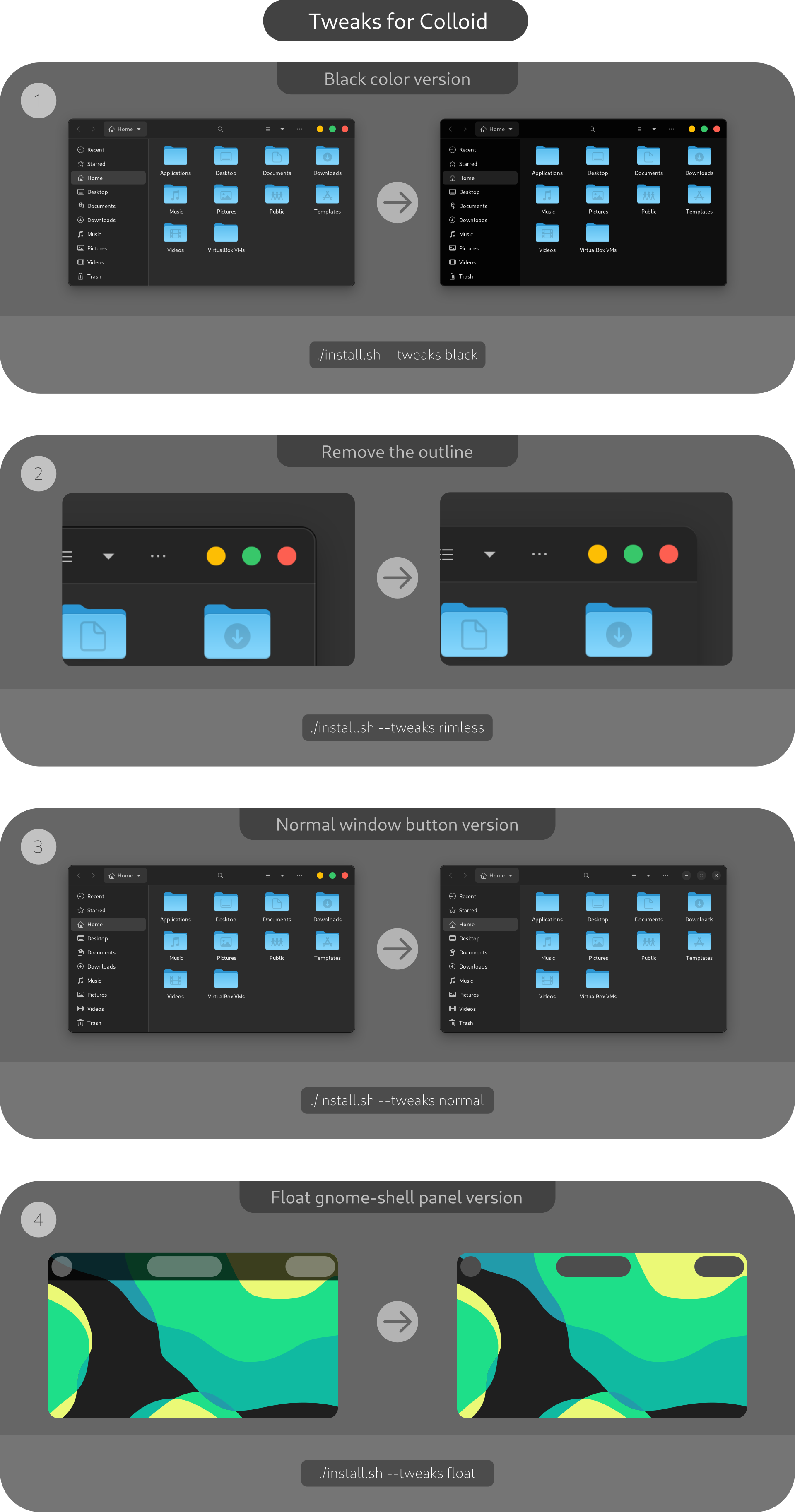
--tweaks                Specify versions for tweaks
                        1. [nord|dracula|gruvbox|everforest|catppuccin|all]  (Nord/Dracula/Gruvbox/Everforet/Catppuccin/all) ColorSchemes version
                        2. black                       Blackness color version
                        3. rimless                     Remove the 1px border about windows and menus
                        4. normal                      Normal windows button style like gnome default theme (titlebuttons: max/min/close)
                        5. float                       Floating gnome-shell panel style

-r, --remove,
-u, --uninstall         Uninstall/Remove installed themes or links

-h, --help              Show help

For more information, run: ./install.sh --help

Fix for Libadwaita

./install.sh -l

Default ColorSchemes themes will follow the system style now ! (switch [light/dark] mode)

https://github.com/vinceliuice/Colloid-gtk-theme/assets/7604295/d5c24086-08bc-45a4-b4d9-124c02249216

Fix for Flatpak

sudo flatpak override --filesystem=xdg-config/gtk-3.0 && sudo flatpak override --filesystem=xdg-config/gtk-4.0

If you use flatpak apps, you can run this to fix theme issue

ColorSchemes
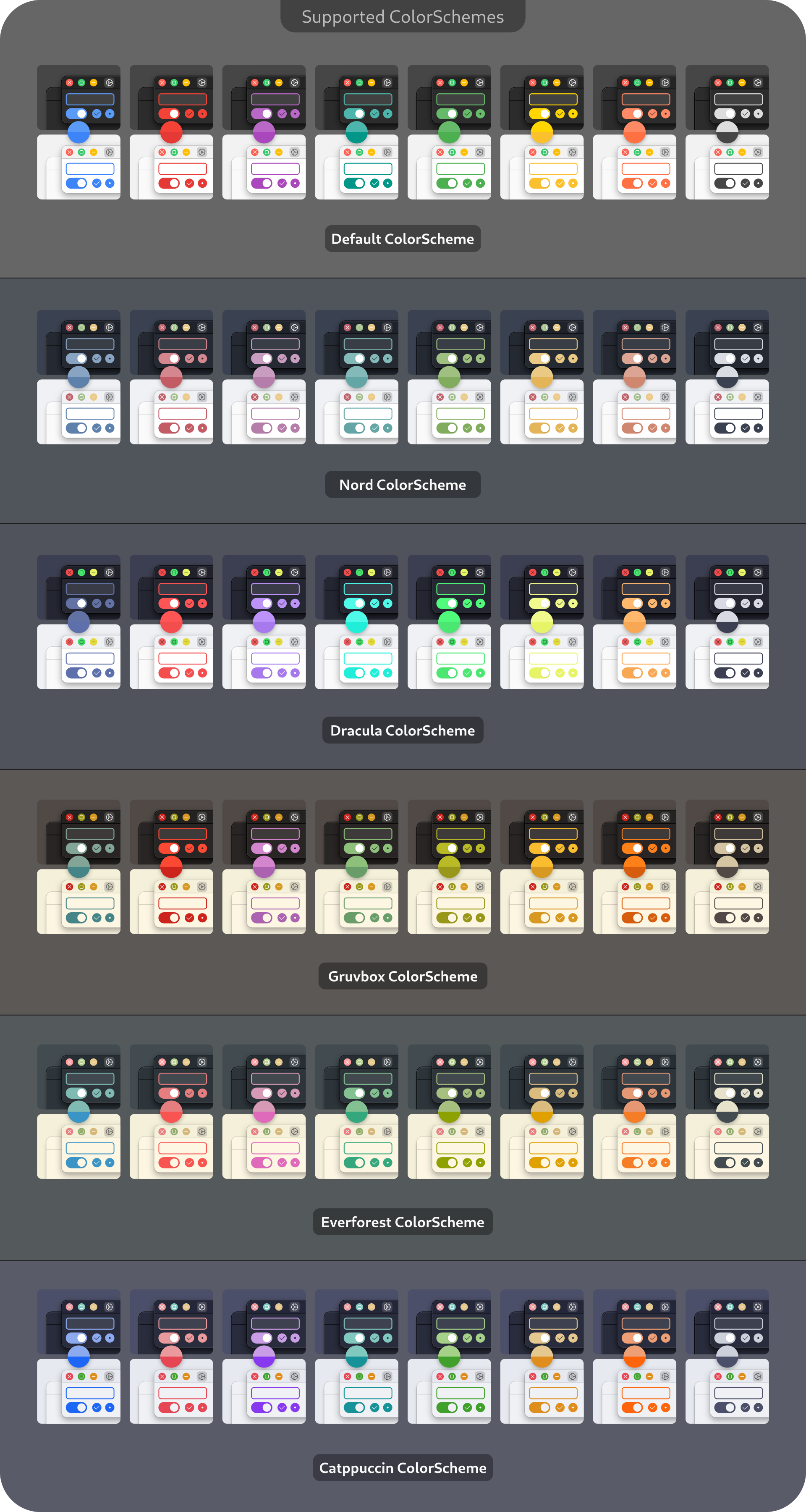
colorschemes

Tweaks

tweaks

Flatpak Installation (gtk-3.0)

Automatically install your host GTK+ theme as a Flatpak. Use this:

Firefox theme
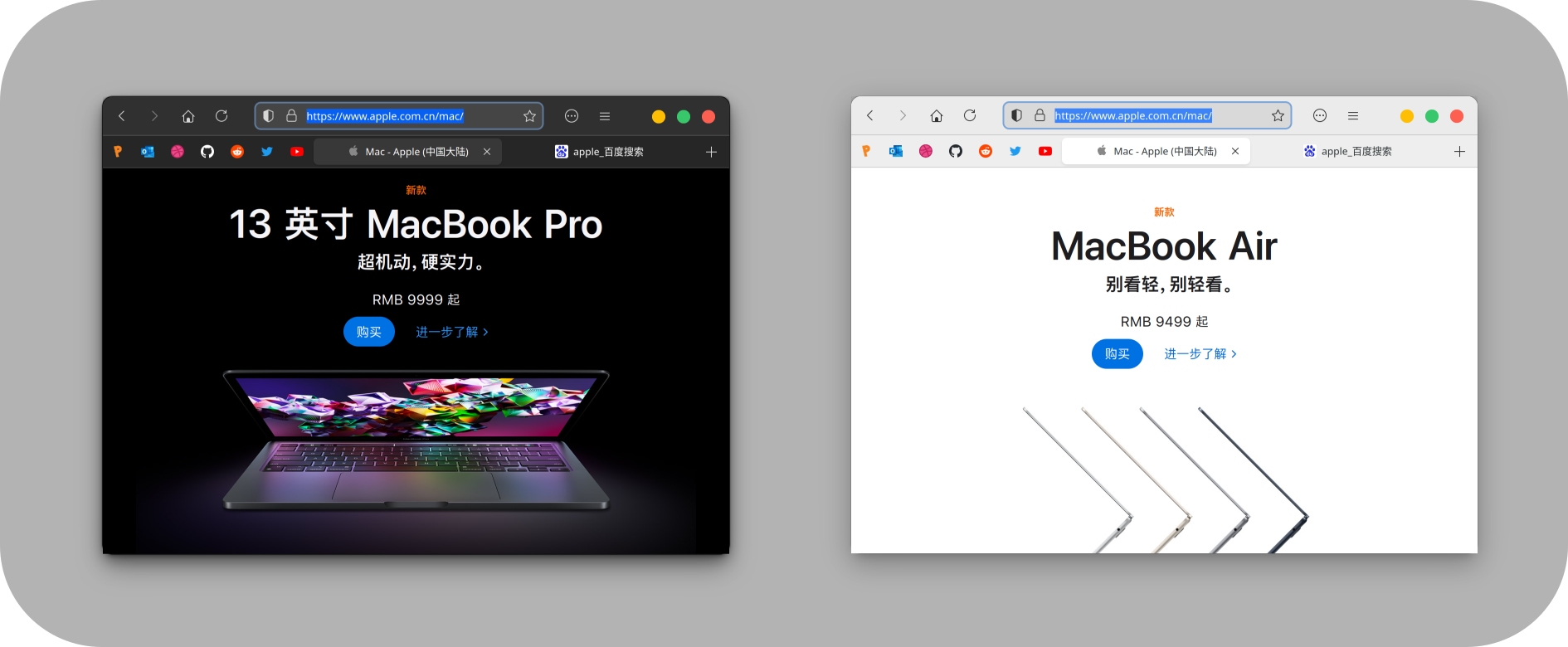
Install Firefox theme

01

GitHub Flavored Markdown (github-markdown-css)README snapshot at fe11342f37