
01. Overview & Architecture

Schema validatedSource pinned
Purpose
Flat icon theme available in many color variants.
Compatibility
Any distro (Server: BOTH)
Desktop Part
Icon themes
Window Manager & Theme
Any WM / DE / Other

02. Installation & Deployment

Before you installThis changes your desktop configuration and installs packages. Run it as your normal user, never with sudo: it asks for sudo only where a step needs it (listed below).The guided installer shows its plan first. Files it would replace are kept unless you approve. Everything it copies, clones or appends to in your home folder is backed up and verified first, and --rollback restores it. Packages, sudo changes and the other commands listed under Impact are not undone.
IntegrityEach release from main builds the installers in GitHub Actions and signs them with a GitHub build attestation. Verify your download against the repository, not this website (Option B, step 2). If it does not verify, don't run it.
ImpactPackages: tela-icon-theme (some from the Arch AUR)
RecoveryGuided: backups in ~/.local/state/0xtsoa/backups/, undo with bash install.sh --rollback.Manual: the steps below only write in the download folder or run listed commands.
Option A: manual installAdvanced
Read the source at the reviewed commit, back up, then run each step yourself.
$git clone https://github.com/vinceliuice/Tela-icon-theme ~/0xtsoa-review/vinceliuice-tela-icon-theme# 1. clone to a review folder
$git -C ~/0xtsoa-review/vinceliuice-tela-icon-theme checkout --detach a1fffc5bfab716bd022dd228ee96fe3965cdb33d# 2. the reviewed commit
Then the steps. Package commands are written for Arch; on other distros use your package manager.

Step-by-step deployment protocol

Step-by-step deployment
1Install tela-icon-theme (AUR)
$yay -S tela-icon-theme # AUR
$# Other distros: see the upstream README
Option B: guided installerRecommended
The same steps as one script for any distro. It shows the plan first, keeps files you already have unless you approve replacing them, and backs up everything it changes in your home folder. Never pipe it into a shell.
$curl -fsSLo install.sh 'https://www.0xtsoa.dev/configs/vinceliuice/tela-icon-theme/install.sh'# 1. download
$gh attestation verify install.sh --repo nyharena25/0xTsoa --signer-workflow nyharena25/0xTsoa/.github/workflows/attest-installers.yml# 2. verify (GitHub CLI 2.49+, signed in)
$less install.sh# 3. read it
$bash install.sh --dry-run# 4. preview: changes nothing
$bash install.sh# 5. install (asks first)
$bash install.sh --rollback# undo the file changes
View script in browserOther options: --force (replace conflicts, backed up first), --yes, --help

03. Screenshot Gallery // Tela

Capture 01 // Fullscreen
Tela-dark
01 / 02

04. Documentation & Guide

Source: vinceliuice/Tela-icon-themeRef: a1fffc5bfa
README.md|GitHub Flavored Markdown

Tela Icon Theme

A flat, colorful icon theme
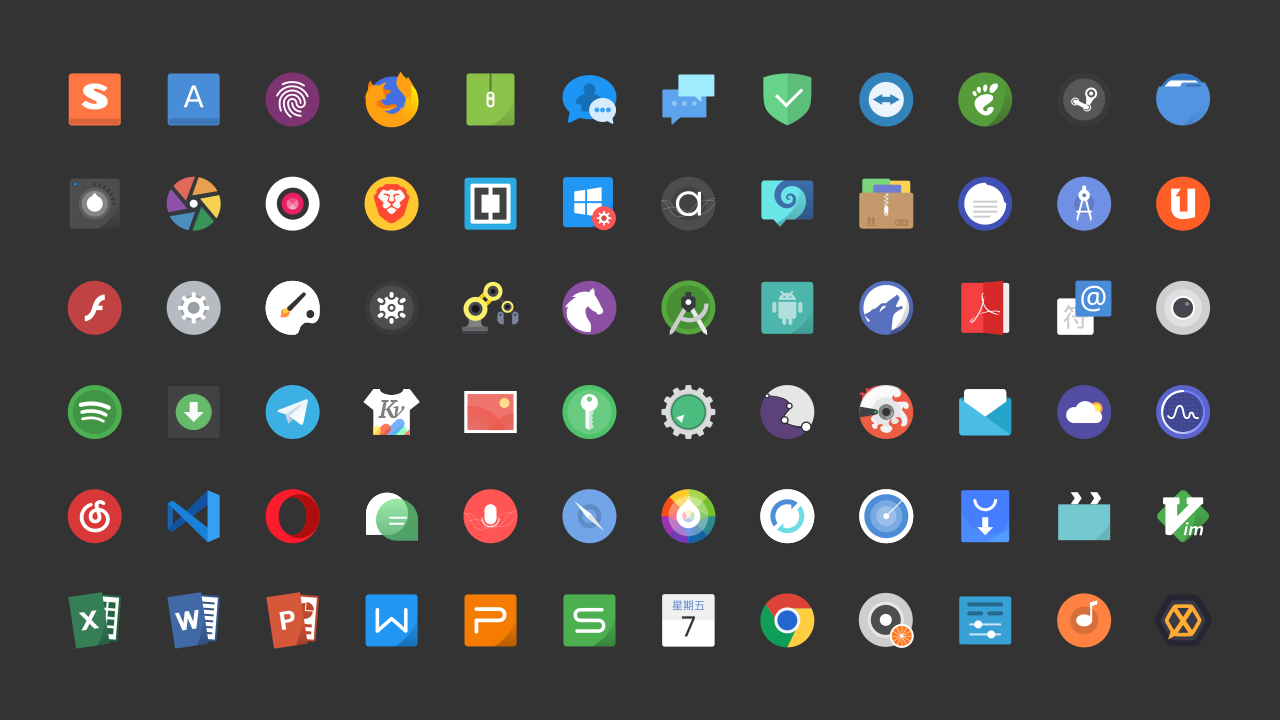

Tela-dark Tela-light

Donate

If you like my project, you can buy me a coffee:

PayPal donate button

Installation

Usage: ./install.sh [OPTIONS...] [COLOR VARIANTS...]

OPTIONS:
-a Install all color versions
-c Install colorscheme version for KDE plasma(folder color follow colorscheme)
-d Specify theme destination directory (Default: $HOME/.local/share/icons)
-n Specify theme name (Default: Tela)
-r, -u Remove/uninstall icon themes (Default: all installed)
-h Show this help
COLOR VARIANTS
standard Standard color folder version
black Black color folder version
blue Blue color folder version
brown Brown color folder version
green Green color folder version
grey Grey color folder version
orange Orange color folder version
pink Pink color folder version
purple Purple color folder version
red Red color folder version
yellow yellow color folder version
manjaro Manjaro default color folder version
ubuntu Ubuntu default color folder version
nord Nord color folder version

By default, only the standard one is selected.

On Snapcraft

Get it from the Snap Store

You can install the theme from the Snap Store оr by running:

sudo snap install tela-icons

To connect the theme to an app run:

sudo snap connect [other snap]:icon-themes tela-icons:icon-themes

On Gentoo Linux

First, you can add Beatussum's overlay by using Layman:

layman --list
layman --add  beatussum-overlay
layman --sync beatussum-overlay

And install the x11-themes/tela-icon-theme package.

GitHub Flavored Markdown (github-markdown-css)README snapshot at a1fffc5bfa