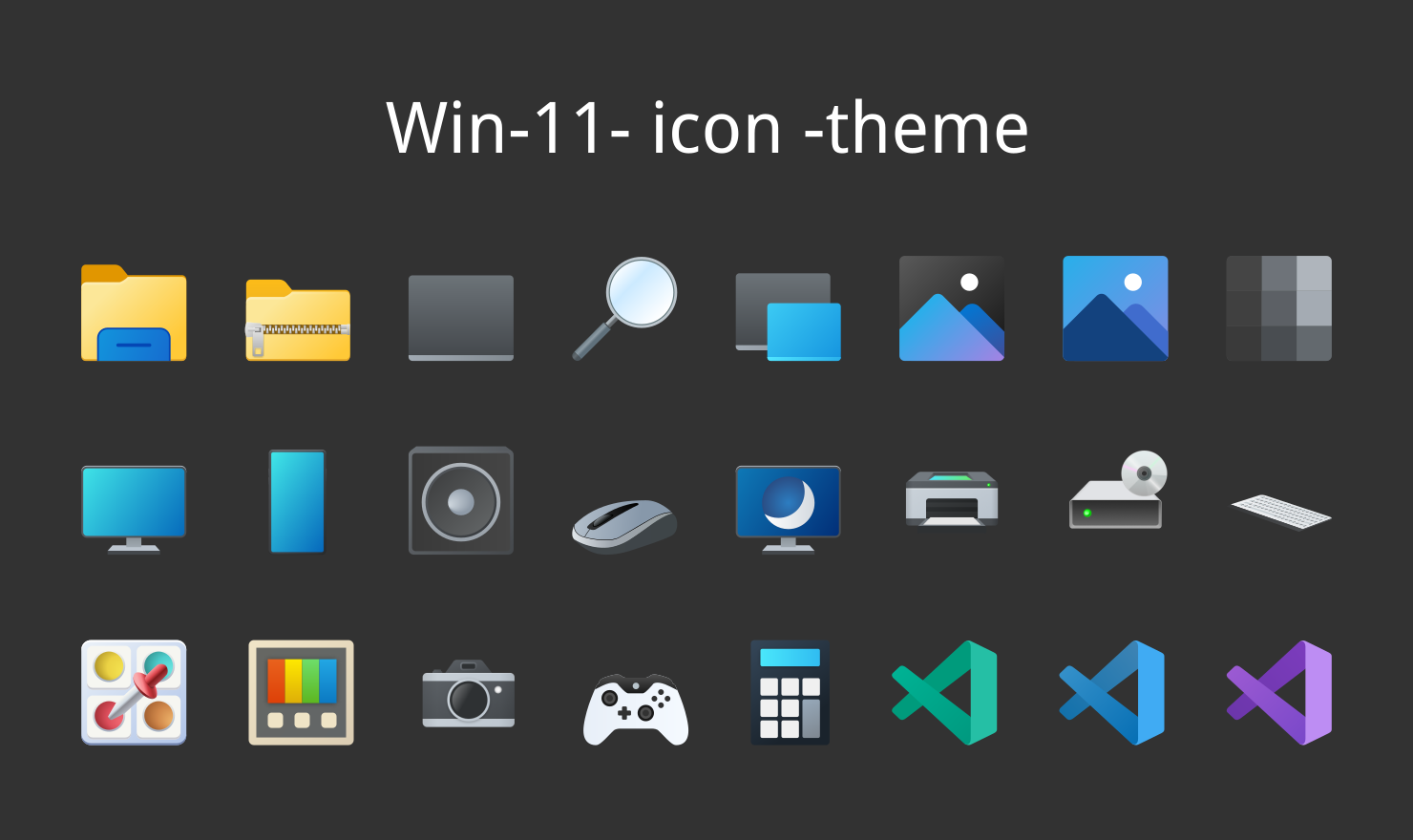
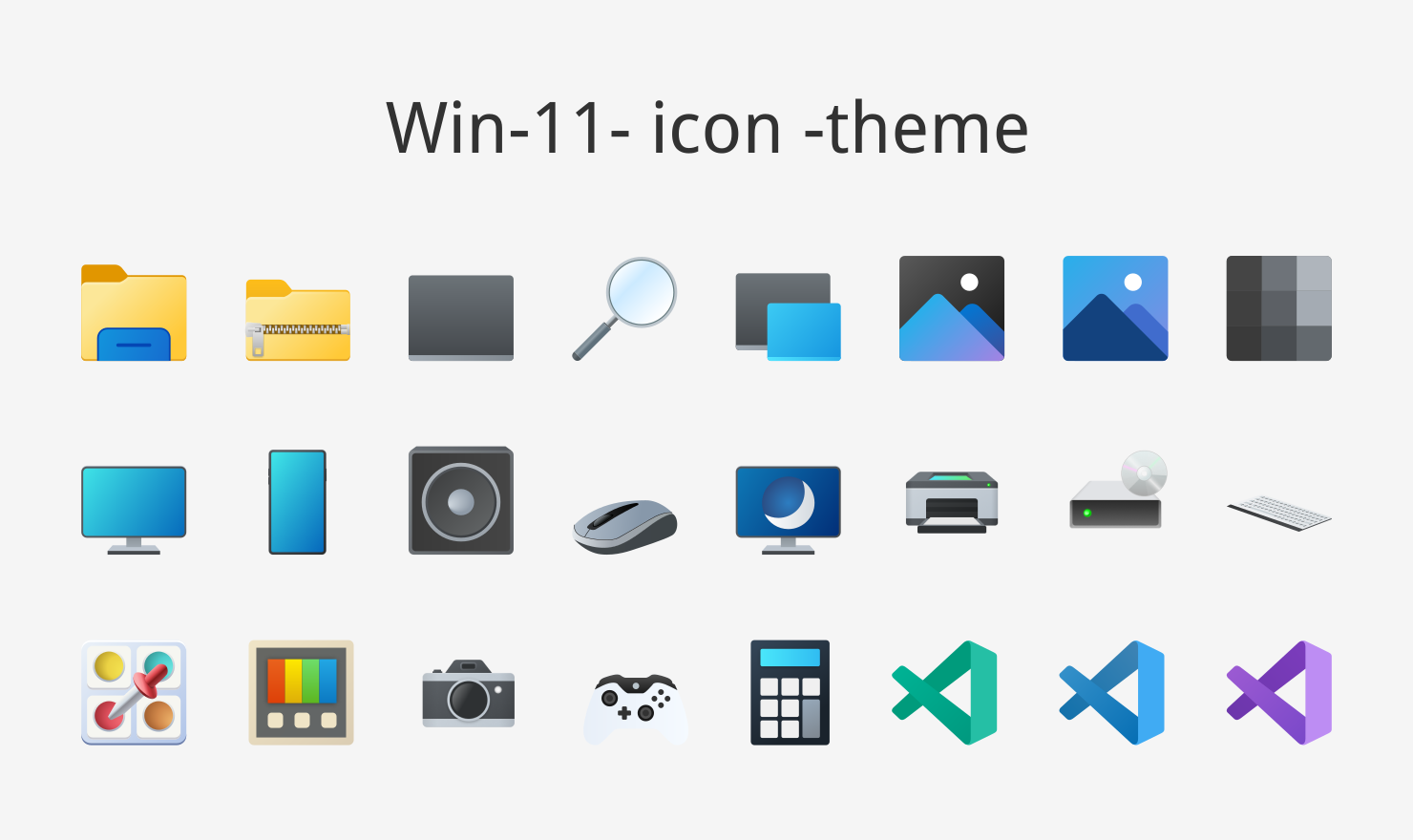
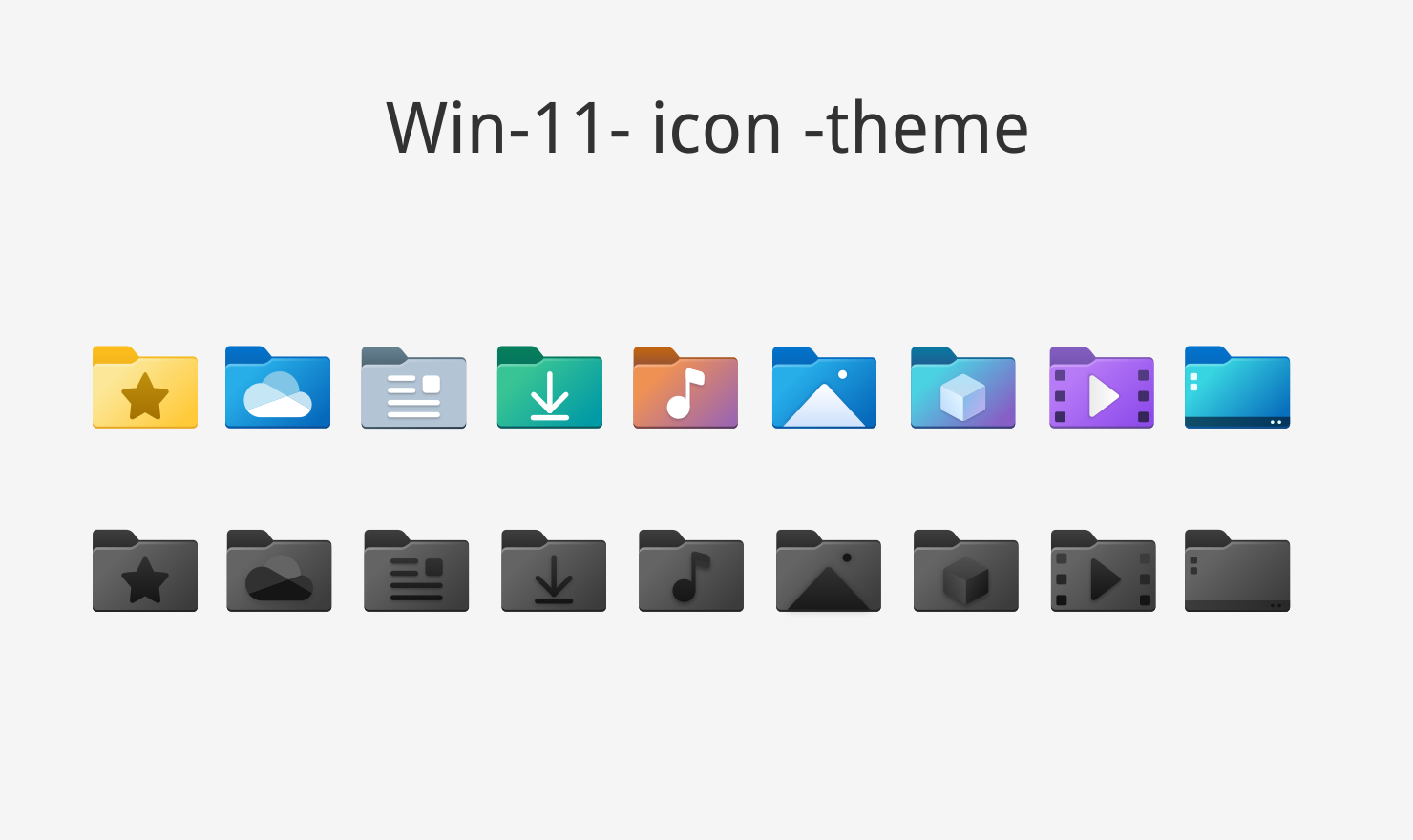
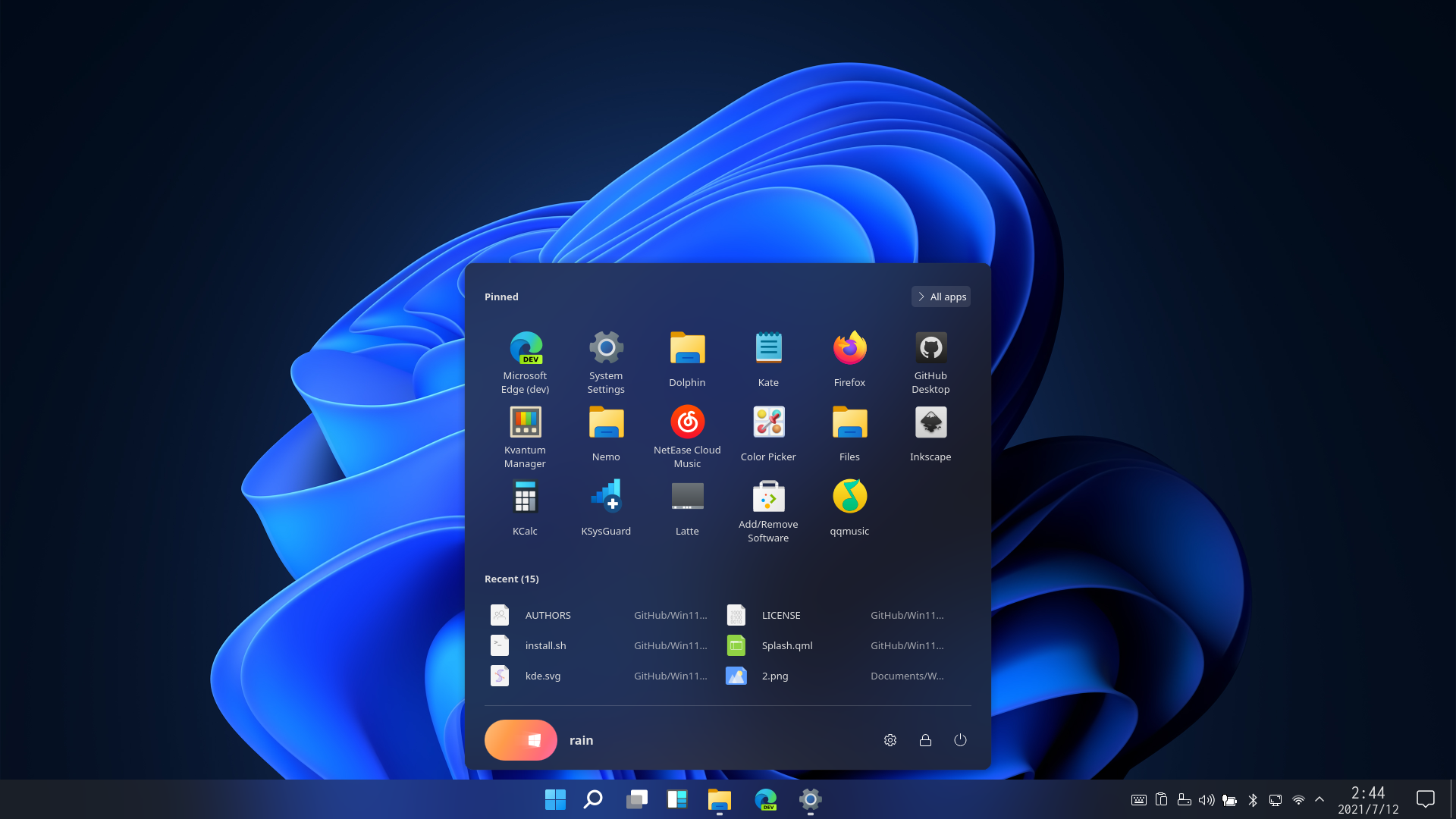
Before you installThis changes your desktop configuration and installs packages. Run it as your normal user, never with sudo: it asks for sudo only where a step needs it (listed below).The guided installer shows its plan first. Files it would replace are kept unless you approve. Everything it copies, clones or appends to in your home folder is backed up and verified first, and --rollback restores it. Packages, sudo changes and the other commands listed under Impact are not undone.
IntegrityEach release from main builds the installers in GitHub Actions and signs them with a GitHub build attestation. Verify your download against the repository, not this website (Option B, step 2). If it does not verify, don't run it.
ImpactPackages: win11-icon-theme-git (some from the Arch AUR)
RecoveryGuided: backups in ~/.local/state/0xtsoa/backups/, undo with bash install.sh --rollback.Manual: the steps below only write in the download folder or run listed commands.
Option A: manual installAdvanced
Read the source at the reviewed commit, back up, then run each step yourself.
$git clone https://github.com/yeyushengfan258/Win11-icon-theme ~/0xtsoa-review/yeyushengfan258-win11-icon-theme# 1. clone to a review folder
$git -C ~/0xtsoa-review/yeyushengfan258-win11-icon-theme checkout --detach a5b460a407da143b32f19a503d7fcebb3edf2371# 2. the reviewed commit
Then the steps. Package commands are written for Arch; on other distros use your package manager.
Step-by-step deployment protocol
Step-by-step deployment
1Install win11-icon-theme-git (AUR)
Shell commands
$yay -S win11-icon-theme-git # AUR
$# Other distros: see the upstream README
Option B: guided installerRecommended
The same steps as one script for any distro. It shows the plan first, keeps files you already have unless you approve replacing them, and backs up everything it changes in your home folder. Never pipe it into a shell.