On GNOME and KDE, the settings app themes every program at once. On a window manager like Hyprland, Sway or i3, nothing does: GTK apps, the newer libadwaita apps, Qt apps and the cursor each read their look from a different place. This guide sets each one so they match, with commands you can copy.
Why themes do not apply on a window manager
A desktop like GNOME runs a settings service that tells every app which theme, icons and cursor to use. A window manager does not, so each kind of app falls back to its own default:
- GTK 3 apps (Thunar, GIMP, Firefox’s file dialogs, most older Linux apps) read
gsettingson Wayland, and~/.config/gtk-3.0/settings.inion X11. - libadwaita apps (Files, Text Editor, most new GNOME apps) ignore GTK themes entirely. They only follow light or dark mode and an accent color.
- Qt apps (Dolphin, Kdenlive, qBittorrent, VLC) use their own style unless a platform theme plugin tells them otherwise.
- The cursor comes from the compositor on its own surfaces, and from each toolkit inside windows.
So “my theme does not apply” usually means one of these four is still on its default.
Install themes where apps look for them
Use your distro’s package when there is one: it puts the files where every app looks. Otherwise copy them into your home folder:
| What | Folder |
|---|---|
| GTK themes | ~/.local/share/themes (older apps also read ~/.themes) |
| Icon and cursor themes | ~/.local/share/icons (older apps also read ~/.icons) |
| Fonts | ~/.local/share/fonts |
The folder name inside them is the theme’s name, which is what you type in the settings below.
GTK 3 apps: gsettings and settings.ini
Set the theme in both places, so it applies on Wayland and X11 alike. The easiest way is nwg-look, a settings window for wlroots compositors that writes both. From a terminal:
gsettings set org.gnome.desktop.interface gtk-theme 'adw-gtk3-dark'
gsettings set org.gnome.desktop.interface icon-theme 'Papirus-Dark'
gsettings set org.gnome.desktop.interface color-scheme 'prefer-dark'
and in ~/.config/gtk-3.0/settings.ini:
[Settings]
gtk-theme-name=adw-gtk3-dark
gtk-icon-theme-name=Papirus-Dark
gtk-application-prefer-dark-theme=1
Restart an app to see the change. If gsettings reports that the schema is missing, install your distro’s gsettings-desktop-schemas package.
libadwaita apps: dark mode instead of a theme
libadwaita apps are designed not to load GTK themes, so changing gtk-theme does nothing to them. Two things do work:
- Light or dark: the
color-schemekey above (prefer-darkordefault). - Matching the GTK 3 apps to them: use adw-gtk3 as your GTK 3 theme. It copies the libadwaita look, so old and new apps finally match.
Some themes offer a “libadwaita” option that copies CSS into ~/.config/gtk-4.0/. It works for colors but can break with each GNOME release; forcing a theme with the GTK_THEME variable breaks more often. Prefer adw-gtk3 plus dark mode.
Qt apps: qt6ct, qt5ct and Kvantum
Qt reads its look from a platform theme plugin. Outside KDE, install qt6ct (for Qt 6 apps) and qt5ct (for older Qt 5 apps), and set this environment variable for your session:
QT_QPA_PLATFORMTHEME=qt6ctThen open qt6ct (and qt5ct) and pick a style, the same icon theme as GTK, and your font. For a style that matches a GTK theme, install Kvantum, choose a theme in Kvantum Manager, and select kvantum as the style in qt6ct and qt5ct.
Where to set the variable depends on how your session starts. ~/.config/environment.d/*.conf files (one NAME=value per line) are read by systemd’s user manager, which sessions started through systemd or uwsm use. Otherwise, use your compositor’s own setting for environment variables, as its documentation shows.
Cursors: one theme, one size, four places
Cursors are the hardest part, because four things each read their own setting. Set the same theme name and size everywhere (here Bibata, 24 pixels):
-
GTK apps:
gsettings set org.gnome.desktop.interface cursor-theme 'Bibata-Modern-Classic'andgsettings set org.gnome.desktop.interface cursor-size 24. -
Apps that use the default theme, including X11 apps under XWayland: create
~/.icons/default/index.themecontaining:[Icon Theme] Inherits=Bibata-Modern-Classic -
Everything else: the
XCURSOR_THEME=Bibata-Modern-ClassicandXCURSOR_SIZE=24environment variables, set where you setQT_QPA_PLATFORMTHEME. -
The compositor itself:
- Sway:
seat seat0 xcursor_theme Bibata-Modern-Classic 24in its config. - Hyprland:
hyprctl setcursor Bibata-Modern-Classic 24applies it now. Hyprland also has its own cursor format, hyprcursor, withHYPRCURSOR_THEMEandHYPRCURSOR_SIZEvariables; themes without a hyprcursor version fall back to the XCursor setting. - i3 and other X11 window managers use the
Xcursor.themeandXcursor.sizelines of~/.Xresources.
- Sway:
If the cursor still changes size between windows, one of the four sizes differs.
Icons everywhere
The icon theme follows the GTK setting for GTK and libadwaita apps, and qt6ct’s “Icon Theme” tab for Qt apps. Set both to the same name. Papirus is a safe choice: it covers almost every app, and Catppuccin Papirus Folders recolors its folders to match a Catppuccin palette.
A worked example
One dark look everywhere, from these registry entries:
The pieces of this example
| Setup | Works with | Difficulty | What it changes | Maintenance | Stars |
|---|---|---|---|---|---|
 adw-gtk3Brings the libadwaita look to legacy GTK3 applications. adw-gtk3Brings the libadwaita look to legacy GTK3 applications. | Works with: Any desktop (Wayland & X11) | Moderate | Changes: 1 package | Active | Stars: 2.1k |
 PapirusPopular, very complete SVG icon theme with dark and light variants. PapirusPopular, very complete SVG icon theme with dark and light variants. | Works with: Any desktop (Wayland & X11) | Moderate | Changes: 1 package | Active | Stars: 8.2k |
| Works with: Any desktop (Wayland & X11) | Advanced | Changes: 1 package | Active | Stars: 4.2k | |
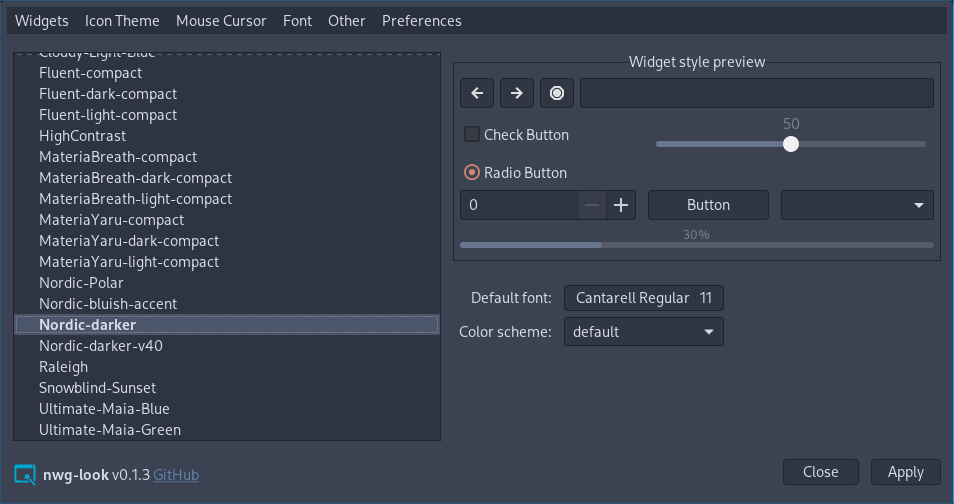 nwg-lookGTK settings editor (lxappearance alternative) for wlroots. nwg-lookGTK settings editor (lxappearance alternative) for wlroots. | Works with: Any desktop (Wayland) | Moderate | Changes: 1 package | Active | Stars: 1.0k |
- Install the four packages from your distro or the AUR, plus qt6ct, qt5ct and Kvantum.
- Run the three
gsettingscommands from the GTK section, and the two cursor ones. - Write
settings.iniand~/.icons/default/index.theme. - Set
QT_QPA_PLATFORMTHEME,XCURSOR_THEMEandXCURSOR_SIZE, and your compositor’s cursor line. - Log out and back in, then pick the Qt style and icons in qt6ct and qt5ct.
For a full palette instead, such as Catppuccin, Nord or Gruvbox, pick a matching GTK theme, icon theme and cursor theme, or generate colors from your wallpaper with one of the color scheme tools.
Flatpak apps
Flatpak apps cannot see your home folder’s themes. If the theme has a Flatpak version, install it; otherwise let them read your theme and icon folders, then restart them:
flatpak override --user --filesystem=xdg-data/themes:ro --filesystem=xdg-data/icons:roQuestions
Why is my GTK theme not applied on Hyprland or Sway?
On Wayland, GTK apps read their theme from gsettings rather than from settings.ini, and no settings daemon sets it for you outside GNOME. Set it with gsettings or nwg-look, then restart the app.
Why do some apps stay light or ignore my GTK theme?
Apps built with libadwaita (most new GNOME apps) do not load GTK themes. They follow the color-scheme setting, so set it to prefer-dark, and use adw-gtk3 for the older GTK 3 apps so both kinds match.
How do I theme Qt apps outside KDE?
Install qt6ct (and qt5ct for older apps), set QT_QPA_PLATFORMTHEME so Qt loads it, then pick a style, icon theme and font in its window. Kvantum adds themes that match popular GTK themes.
Why is my cursor different in some windows?
Each toolkit and the compositor read the cursor from a different place. Set the same theme and size in gsettings, in ~/.icons/default/index.theme, in the XCURSOR_THEME and XCURSOR_SIZE variables, and in your compositor's own cursor setting.